

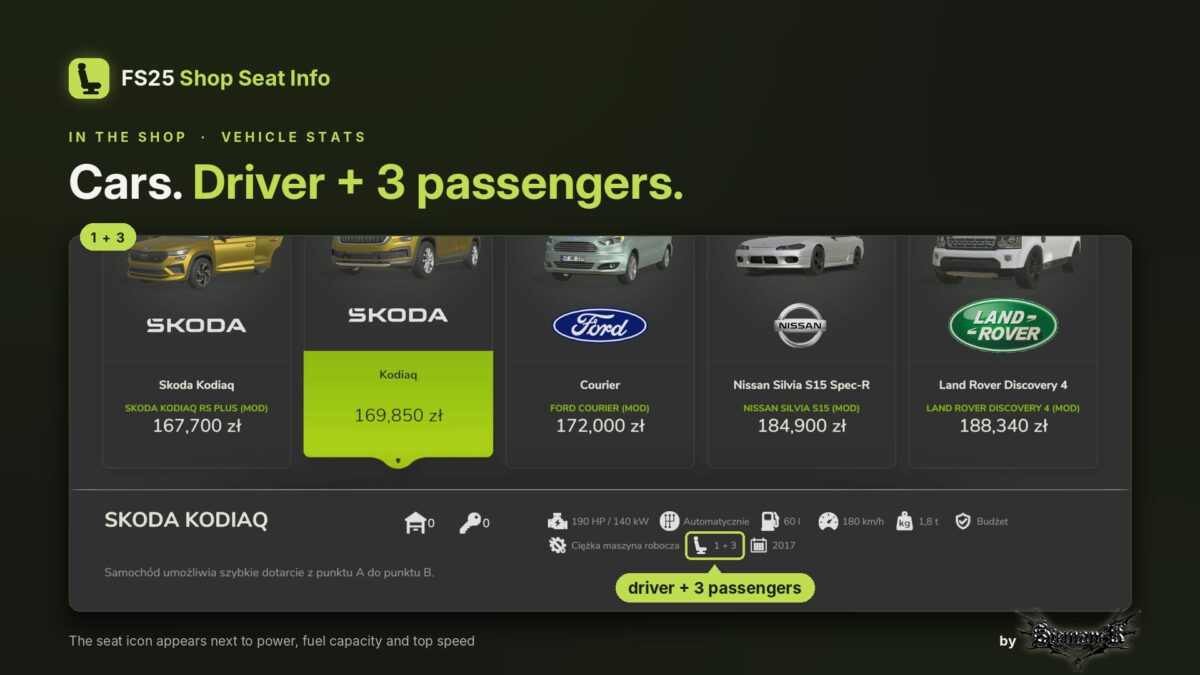
Shop Seat Info v1.0


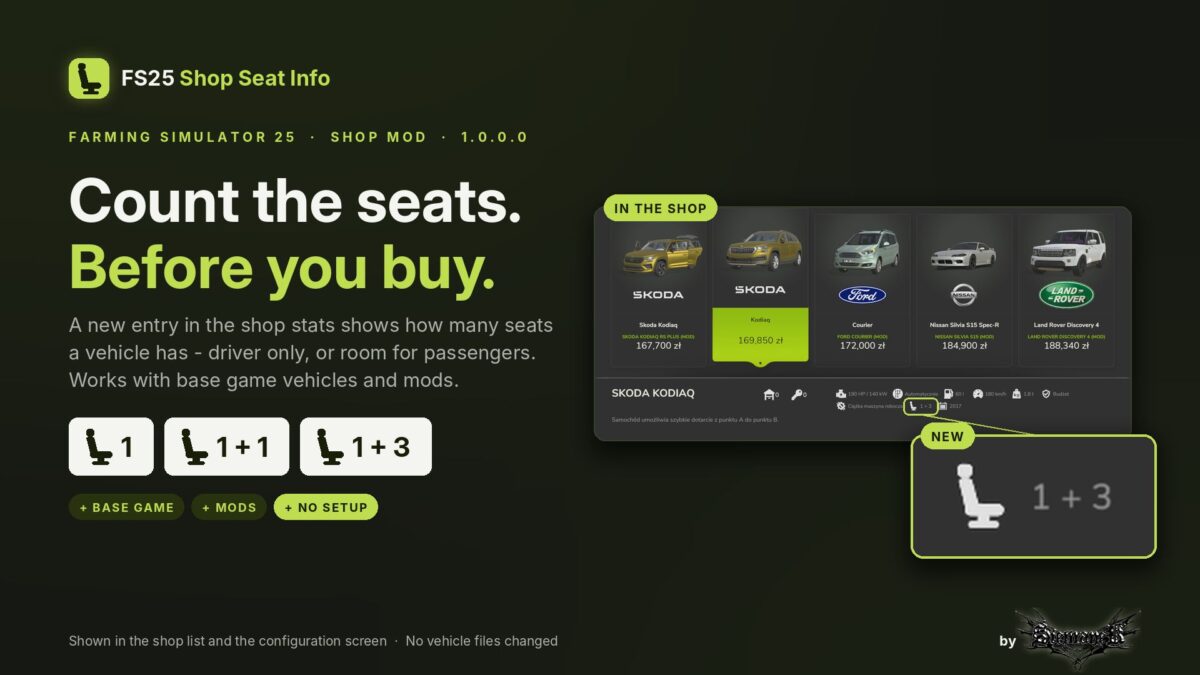
Ever bought a tractor just to find out your friend has nowhere to sit? Shop Seat Info adds one small but handy entry to the vehicle stats in the shop: the number of seats.
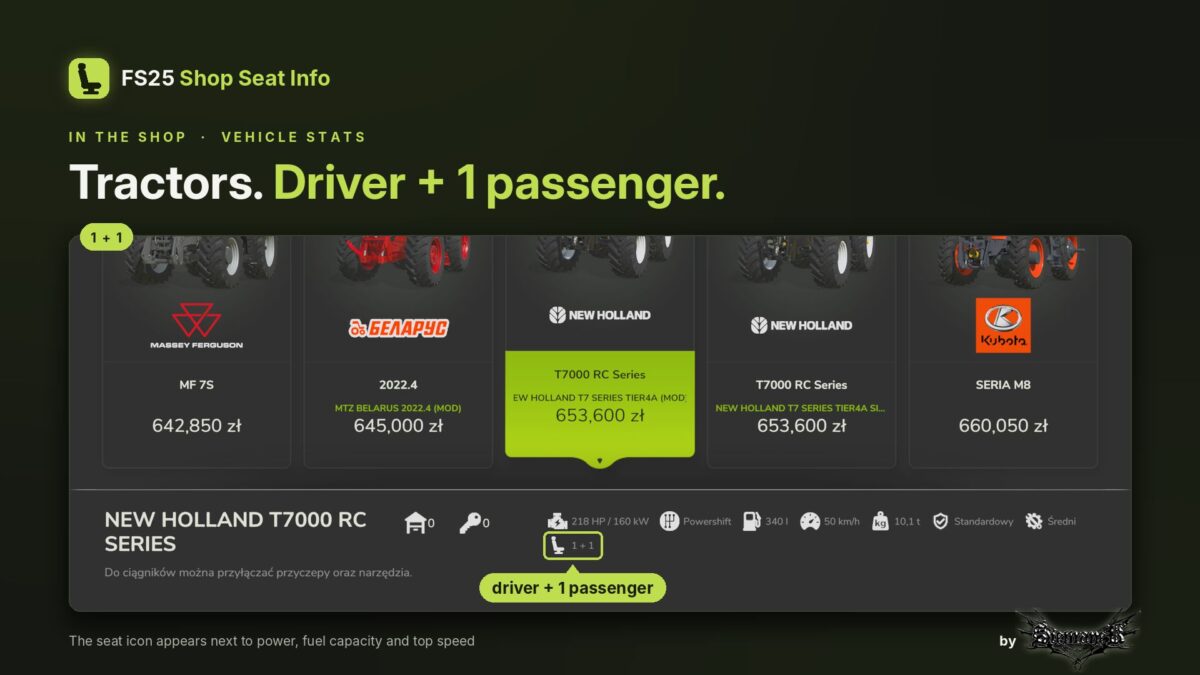
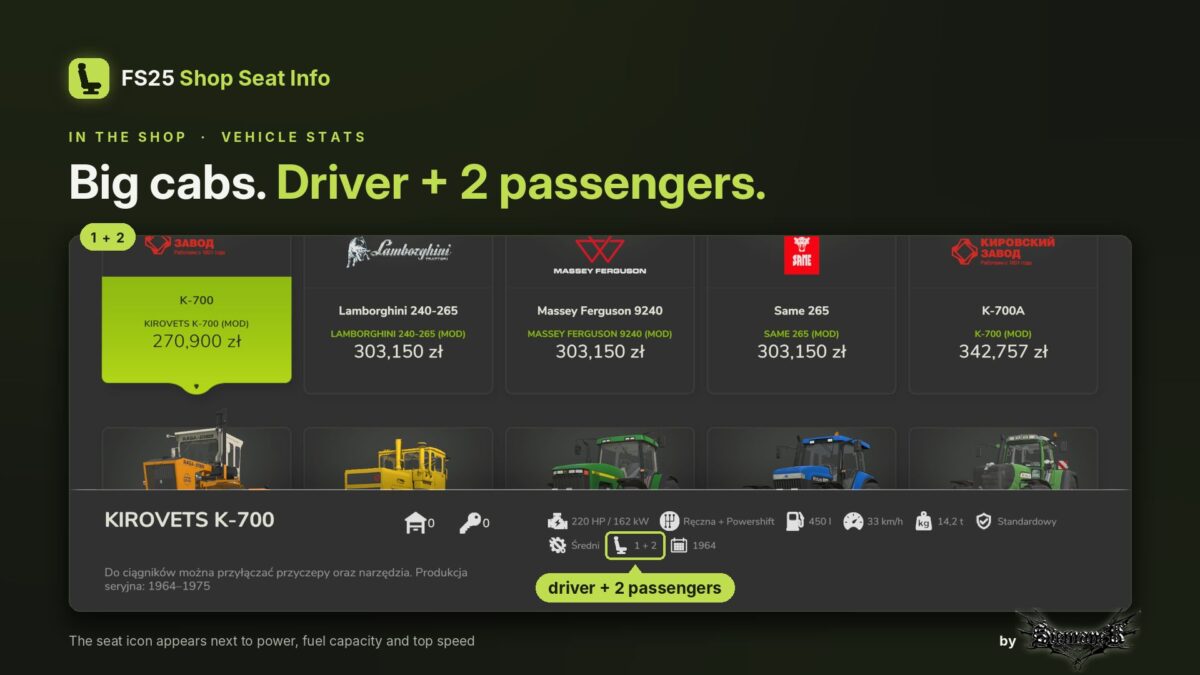
A new seat icon appears next to power, fuel capacity and top speed, so you can see at a glance whether a vehicle only has a driver seat or also offers room for passengers.
How to read it:
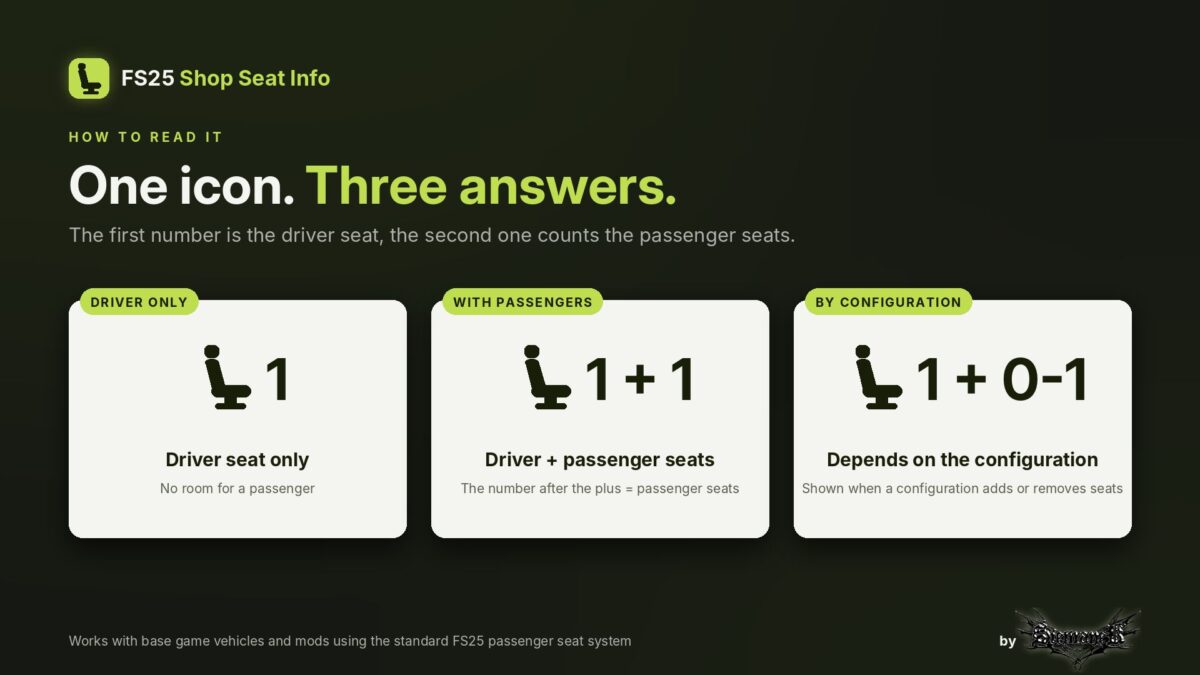
“1” – driver seat only
“1 + 1” – driver seat + one passenger seat
“1 + 3” – driver seat + three passenger seats
“1 + 0-1” – the number of passenger seats depends on the chosen configuration
Features:
Works automatically with all base game vehicles
Works with every mod that uses the standard FS25 passenger seat system
No changes to vehicle files, no setup needed – just activate the mod
Shown in the shop list and in the vehicle configuration screen
Trailers and implements without a cab are not affected
Lightweight script, no impact on performance
Note: passenger seats added by custom scripts instead of the standard game system cannot be detected and will show the driver seat only.
Credits:
Siemanek