

Mini Map Layer v 1.0.5.0


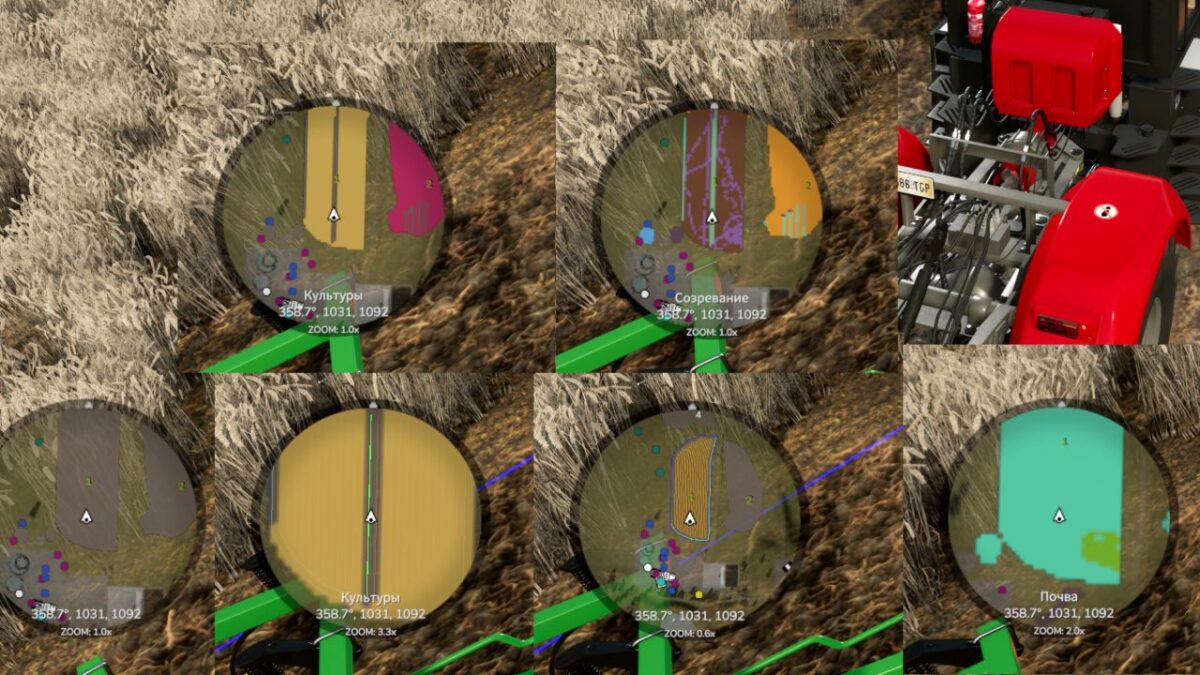
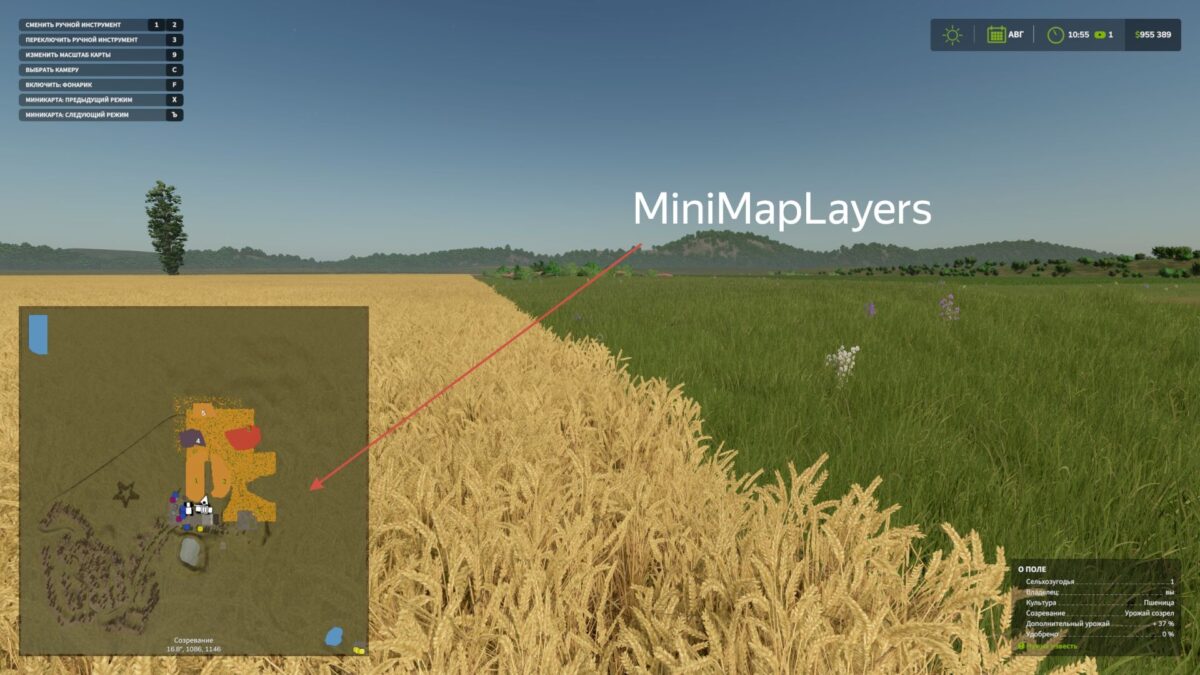
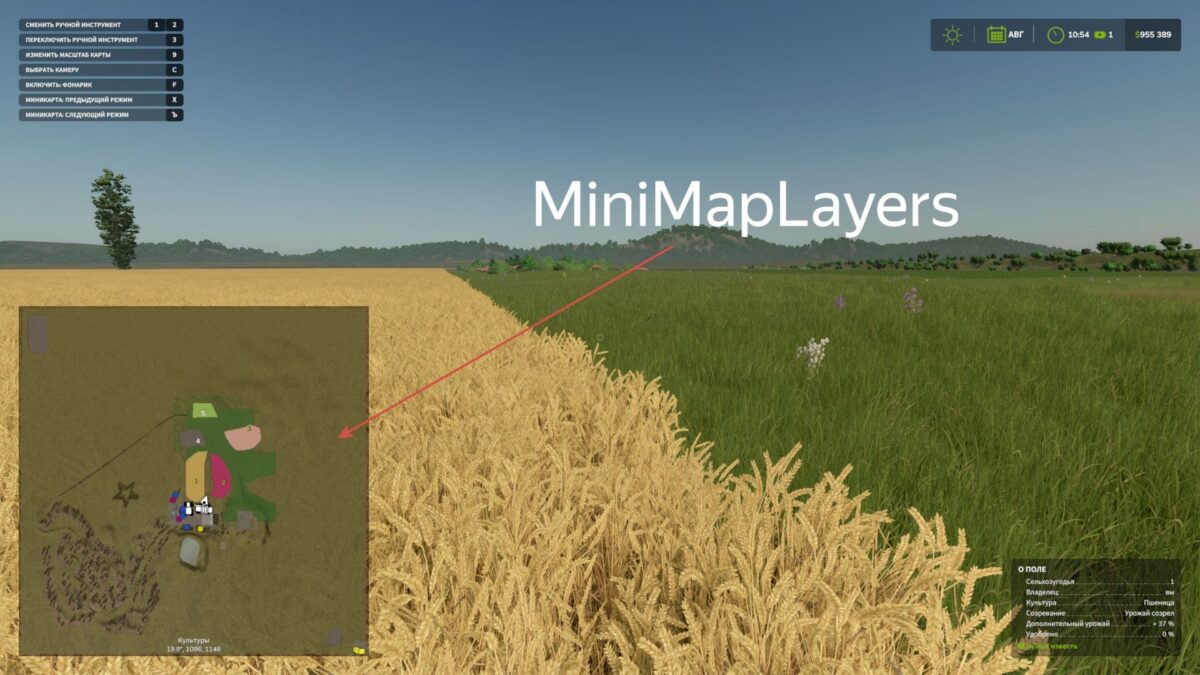
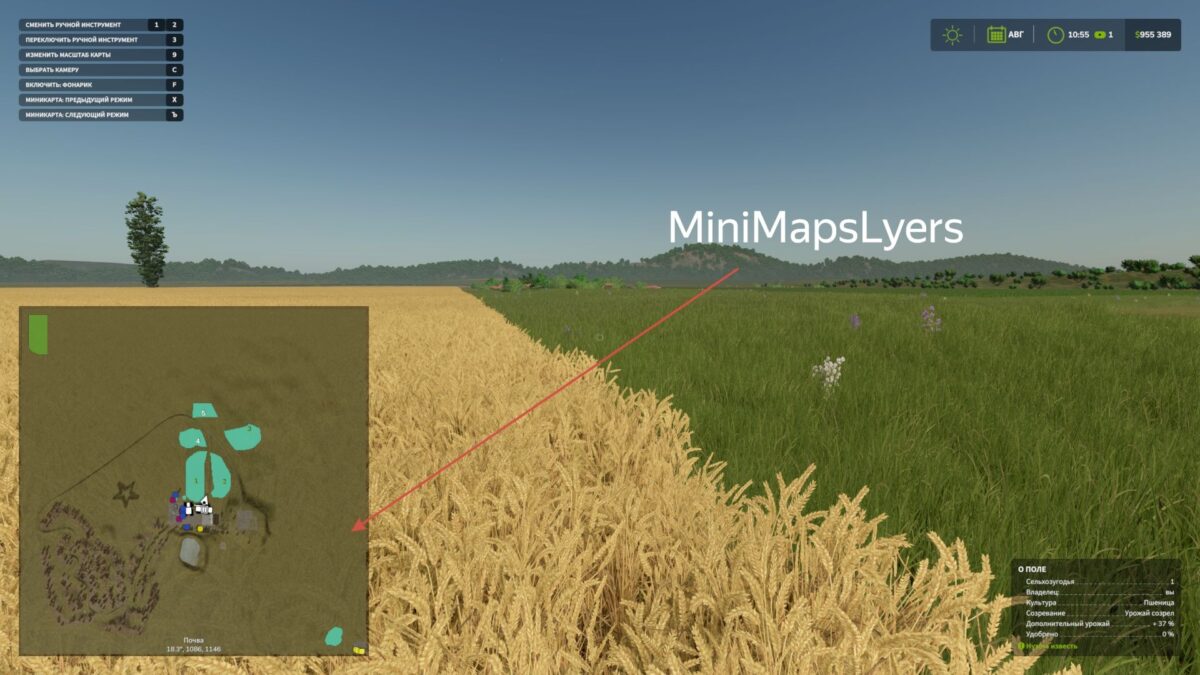
Mini Map Layers adds advanced mapping layers directly to the Farming Simulator 25 HUD minimap.
Now you can see crops, growth stages and soil conditions right while working in the field without opening a PDA card.
Switching minimap modes is done using hot keys (assigned in the control settings).
Default keys:
] = next layer, [ = previous layer.
alt+] = zoom in, alt+[ = zoom out
Version 1.0.5.0:
* Added a settings item for the mod (You can configure the inclusion of separate soil layers for display)
* Added compatibility with precision farming. Precision agriculture layers can now be displayed on the minimap (can be turned off or on in the mod settings)
* Auto mode added as a test. Can be enabled in settings. It tries to detect your equipment and places the appropriate layer on the minimap (including auto mode, manual switching does not work)
Credits:
BMProd


