
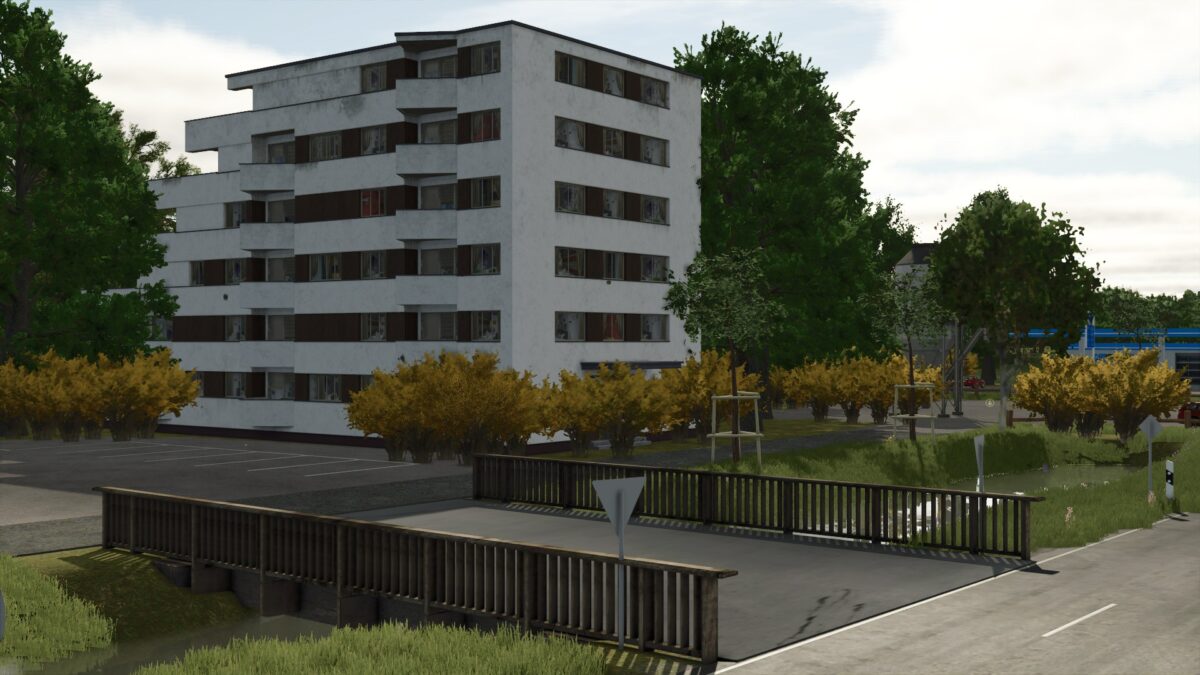
FS25 Maps

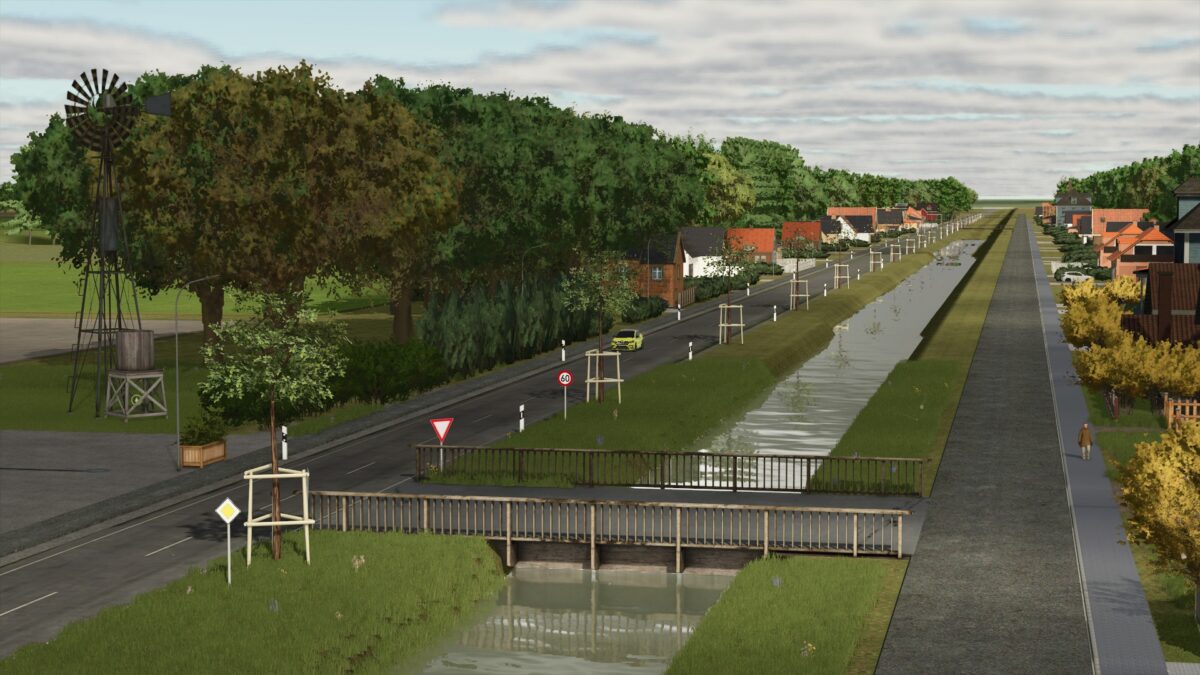
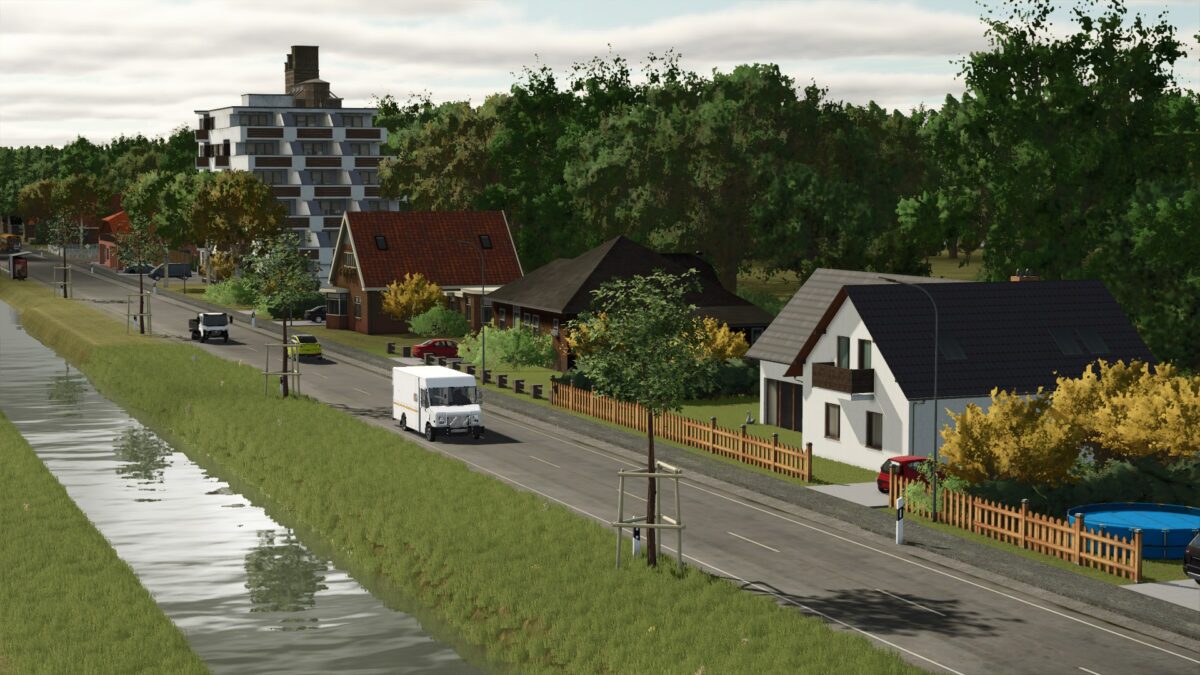
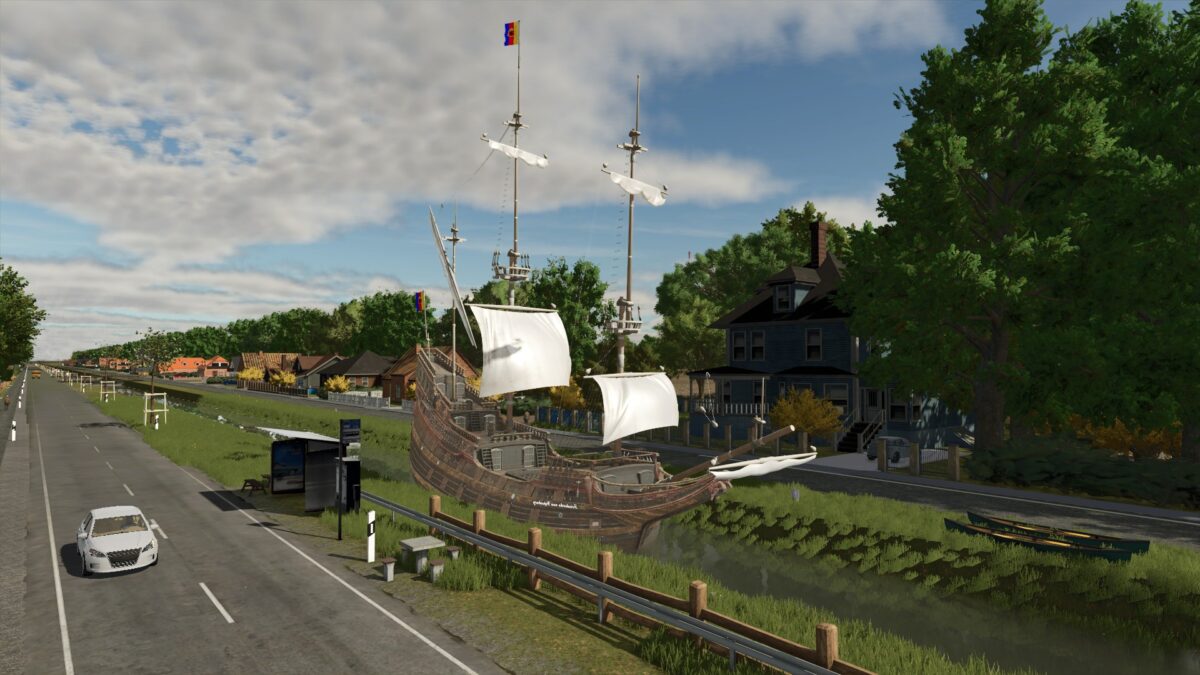
Papenburger Map 4K v 2.2.8

Papenburger Map 4K v 2.2.8

– 105 fields with a total of 1042.9 hectares
– 44855 trees
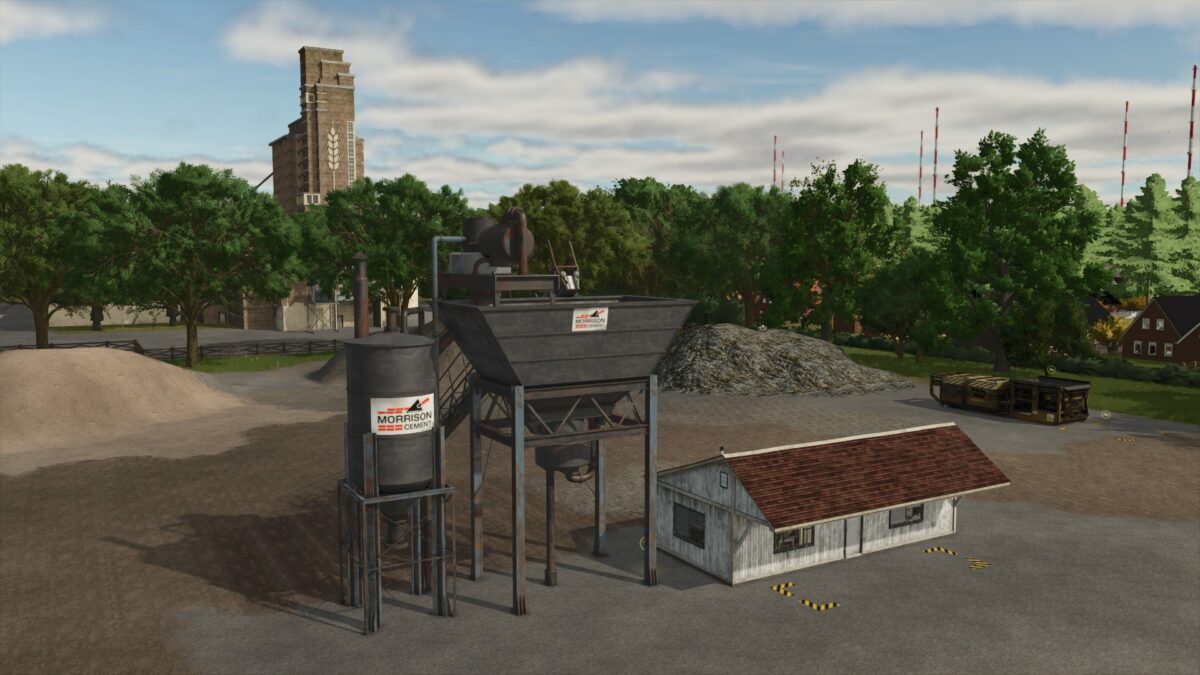
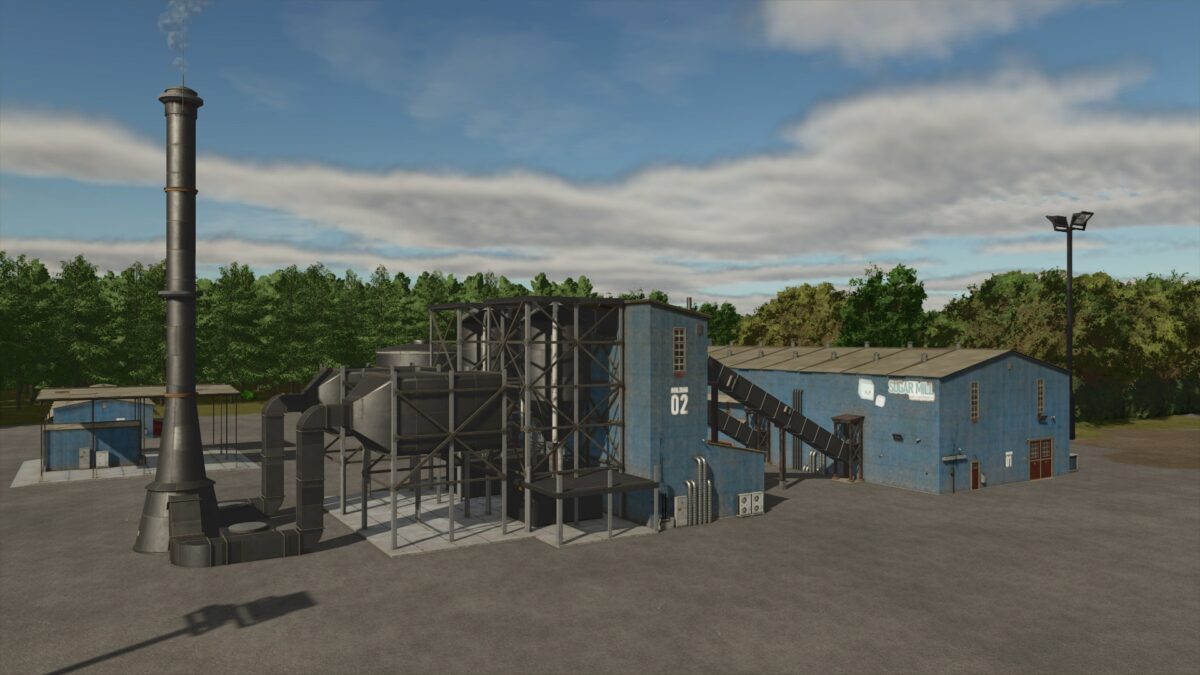
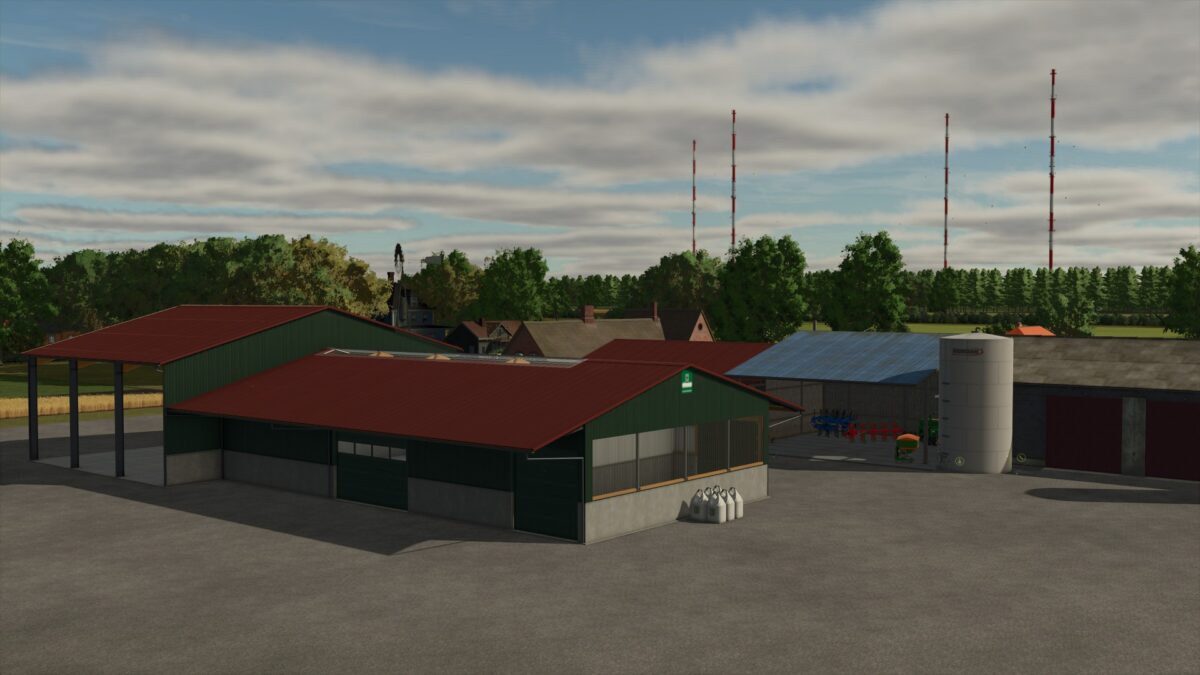
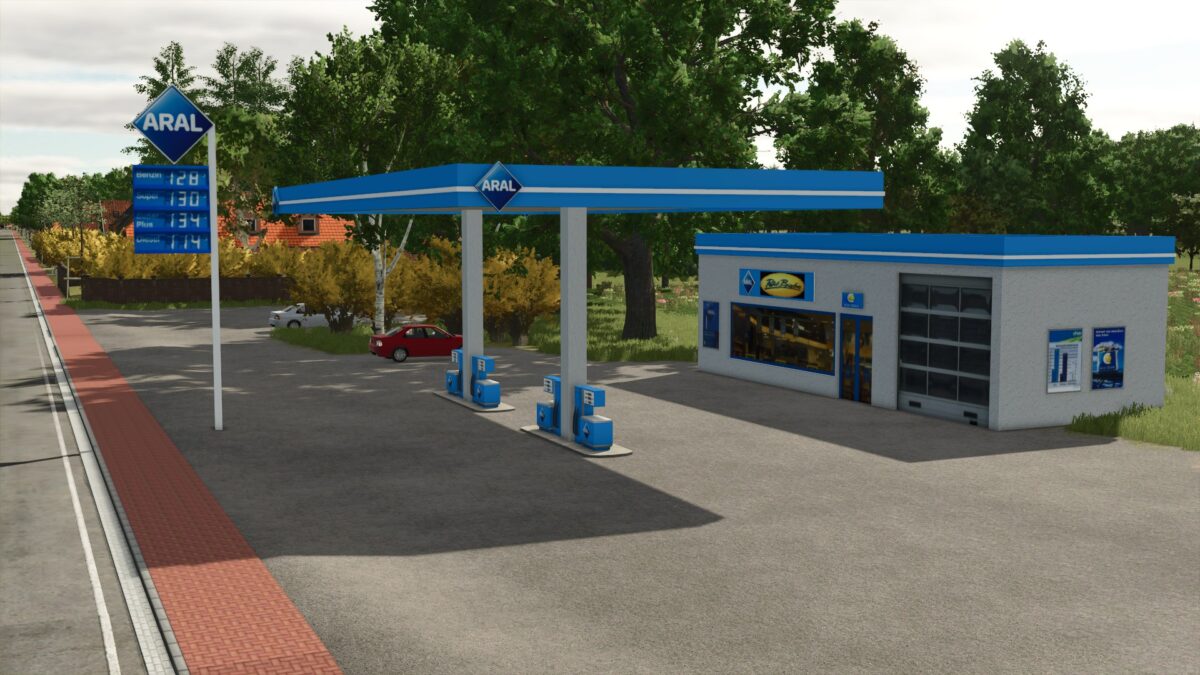
– Several sales outlets and productions
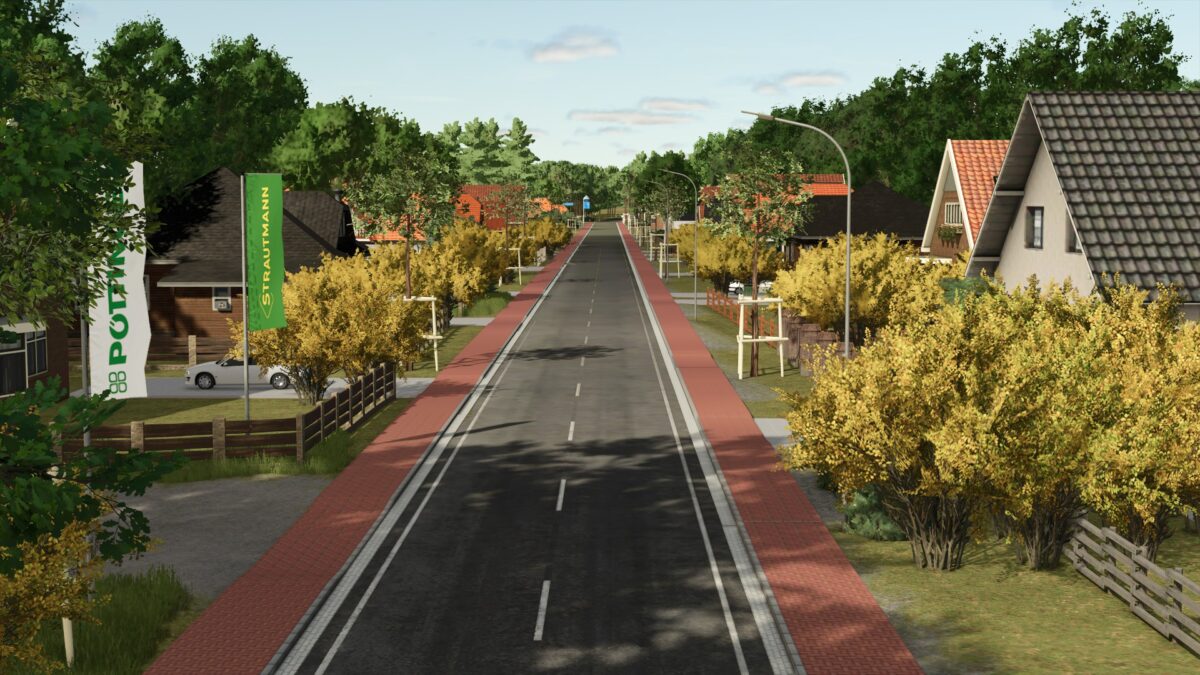
– There is traffic but be careful at the big intersection, they only drive straight ahead
– There is a small starting yard with a few machines. Only the bare essentials for now
– The decoration is not yet complete

Version 2.2.8:
* Field 64 teleport and field indicator positioned correctly
* Forest separated from field 64 (Farmland 74)
* Farmland 118 moved to the opposite side of the sawmill in the forest
* Sawmill only on Farmland 117
* Missing field paths painted (not visible if cache is not deleted)
* Traffic signs set
* Field 2 stripes removed and lime stripe removed at the top (not visible without save manipulation)
* Field 119 made into a farmland (top left)
* Farmland 83 reduced in size
* Field indicator and teleporter moved from field 105
* Farmland 121 hidden from map

Credits:

Jimkerk

How to install FS25 Maps?
Firstly find a mod which you like and want to download. Then download a mod to your PC. Mods are usually in .zip format file. But sometimes it can be in .rar. If a mod file is a .zip format no needed additional actions. If a file is in .rar, then you must unarchive mod with software like WinRar or Zip7. Windows 10 users no need to use software for archives, Win10 itself has a feature to unarchive files.
The next step is to find mods folder in your PC. Usually, it is in Documents/My Games/Farming Simulator 25/2025. Open the "mods" folder and put downloaded .zip archive or unarchived .rar file to this folder.
Last step. Enjoy of FS25 mods!

Leave a Reply

Your email address will not be published. Required fields are marked *