

Non Stop Crop v 1.0


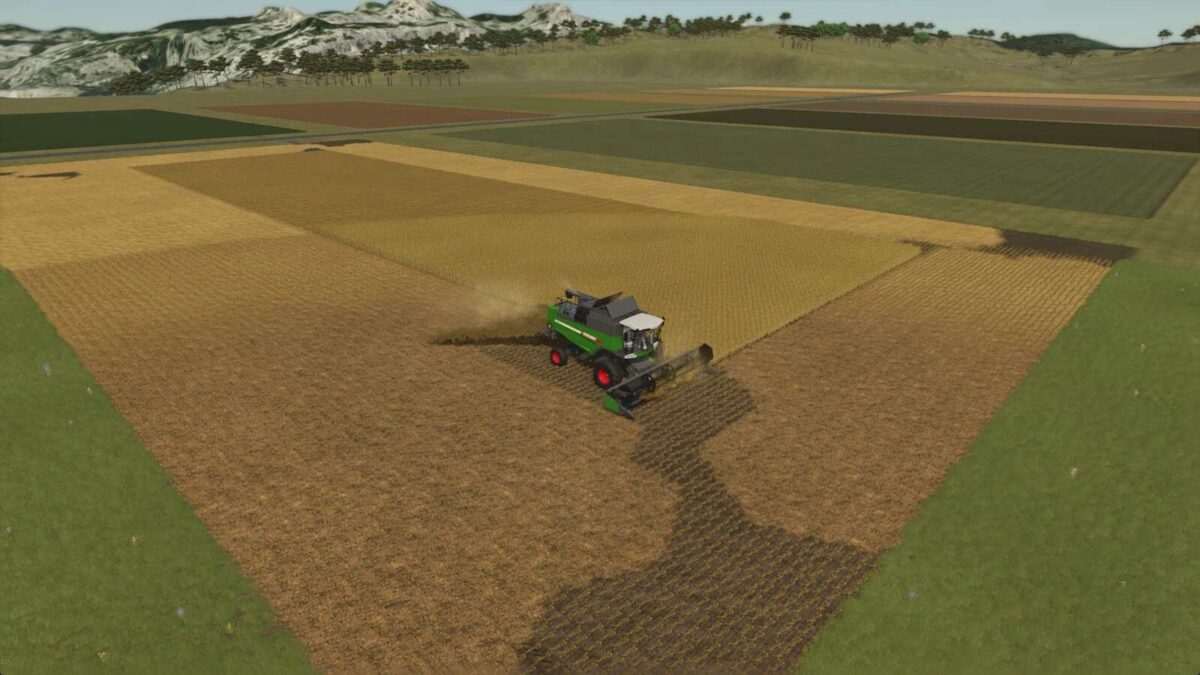
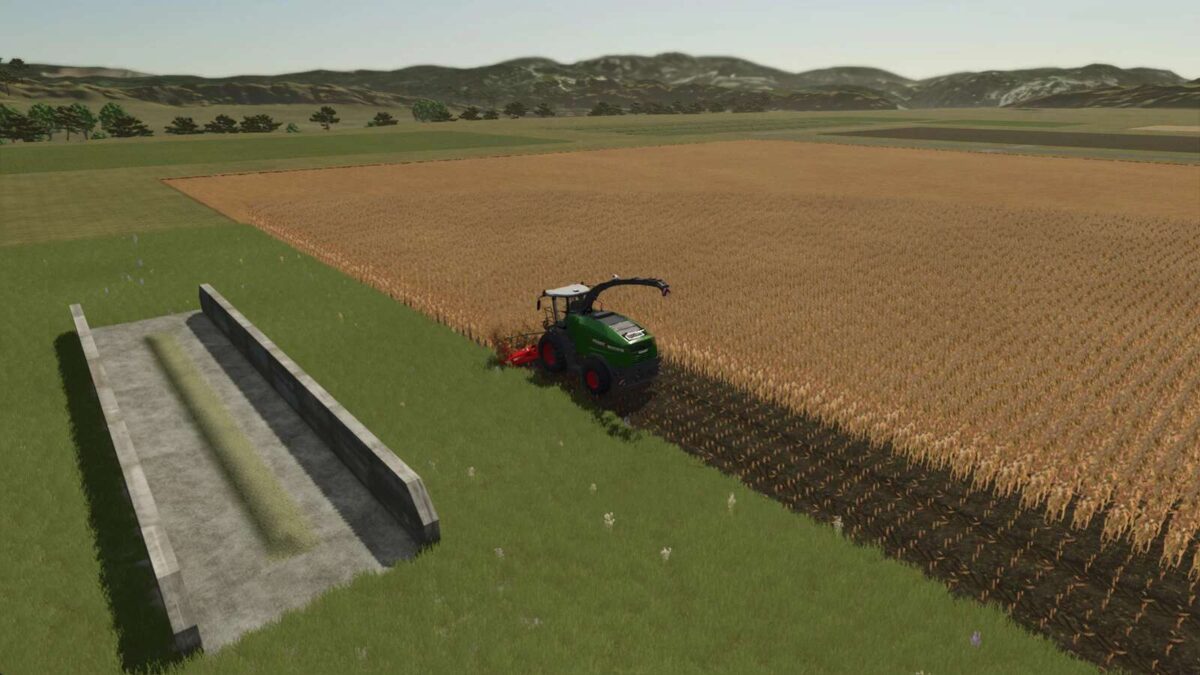
Harvest without ever stopping. Non-Stop Crop transfers the incoming crop from your harvester directly to a silo / storage object.
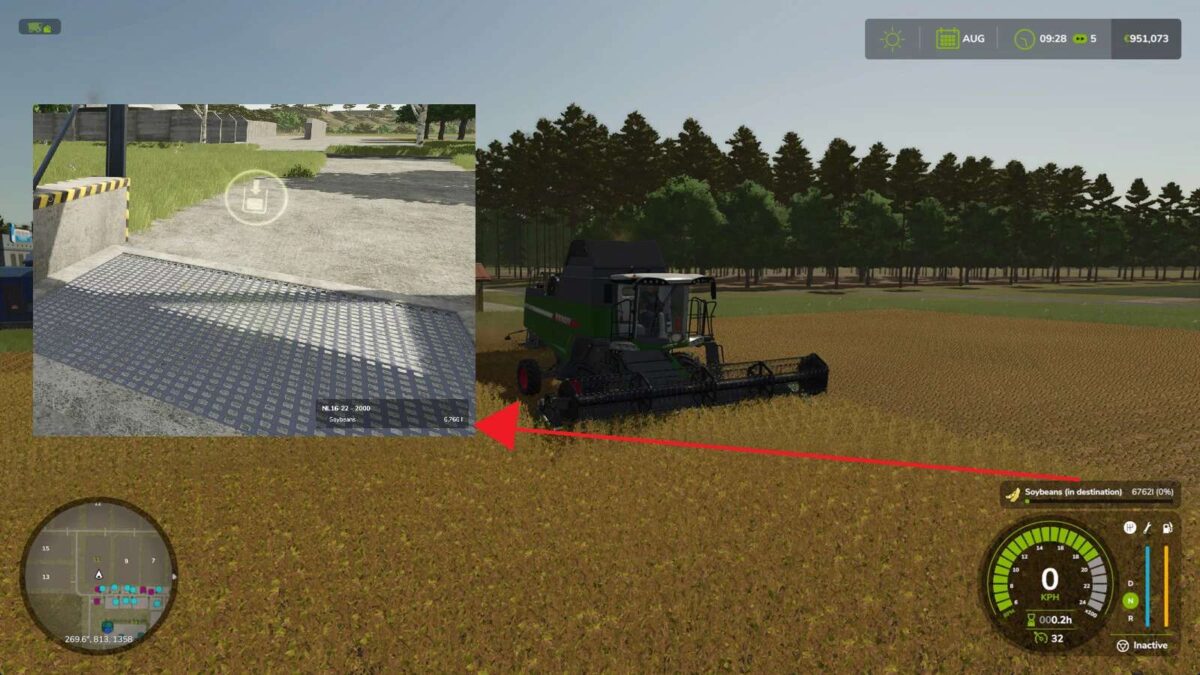
While active, the vehicle HUD shows the destination’s current fill level and capacity instead of the harvester’s own (often infinite) buffer, suffixed with “(in destination)” so it’s clear at a glance.
Press Left Alt + N while in a supported vehicle to enable or disable Non-Stop Crop on that vehicle. Each vehicle stores its own enabled state and destination.
Supported vehicles/tools:
– Combine harvester
– Forage harvester
– Forage wagon
Supported destinations:
– Silo
– Bunker silo
– Production
– Animal husbandry
The destination is validated against the current crop. If the destination cannot accept the fill type, a warning is shown on the help bar and no transfer happens until you switch crops or pick a different destination.
How to assign a destination:
1. Open the map menu.
2. Click on a hotspot of a support destination.
3. Click on “Set destination”.
Bunker silos that don’t have a map hotspot get one injected automatically by this mod, including a teleport option to visit a bunker silo.
Credits:
Jos


