

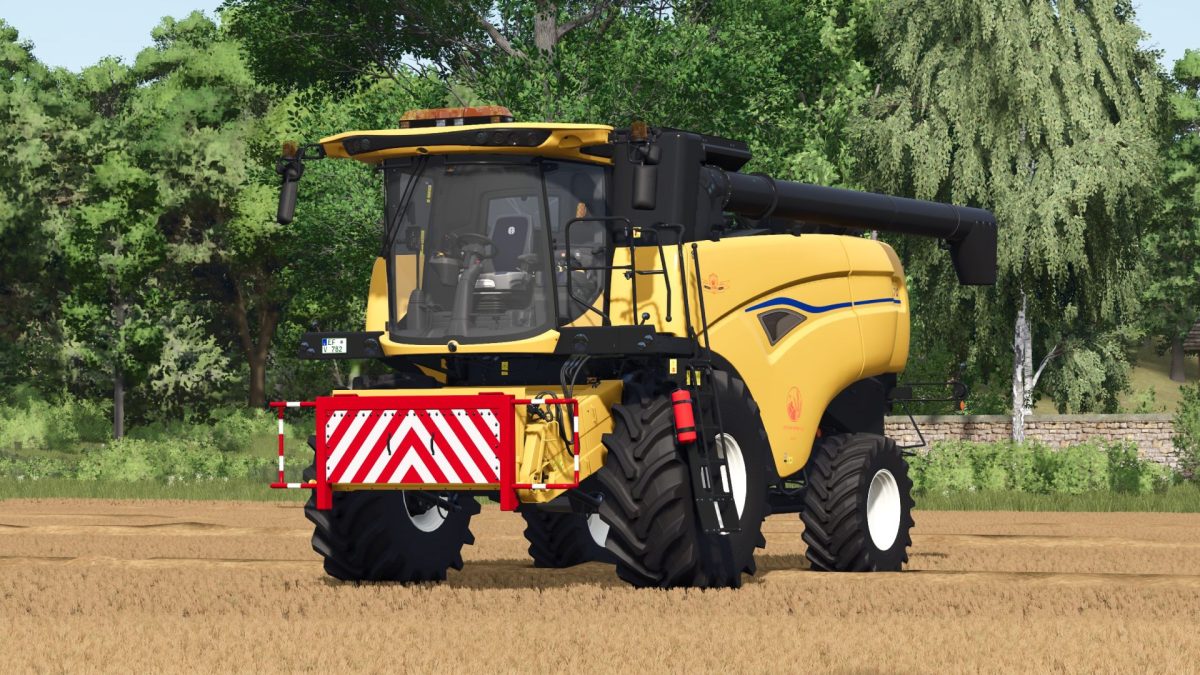
New Holland CH Series v 1.1.1


New Holland CH with Interactive Control & Real GPS.
You already know my very realistic Varifeed header and today there is the matching New Holland CH combine harvester.
The thresher has: Interactive Control & real GPS
When the tube is unfolded, the monitor displays a warning that the tube is unfolded. When the tube is folded back in, this warning disappears.
Interactive Control Outside:
– Ladder open/close,
– Install/remove warning sign
– Straw chopper/straw swath (only animation to switch between swath and chopping you have to do it as usual in the vehicle)
Interactive Control Inside:
– Ladder Open/Close
– Rotating beacon on/off
– Front work light on/off
– Rear work light on/off
– Switch between two monitors (additional IC points on the second display)
– Wiper on/off
– Thresher open/close
– Start/Switch off engine
– Start/Shutdown working mode
– Tube folding/unfolding
Version 1.1.1:
* Added ModIcon
Credits:
DjB


