

Fence Placement Helper v1.0.0.0


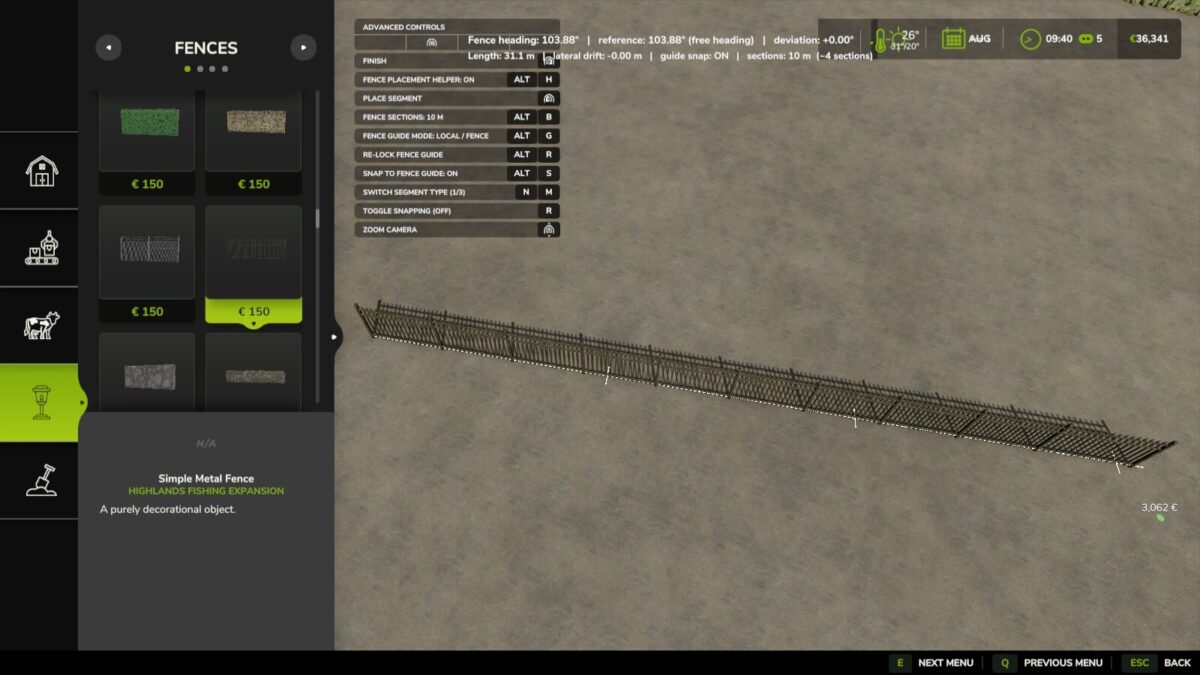
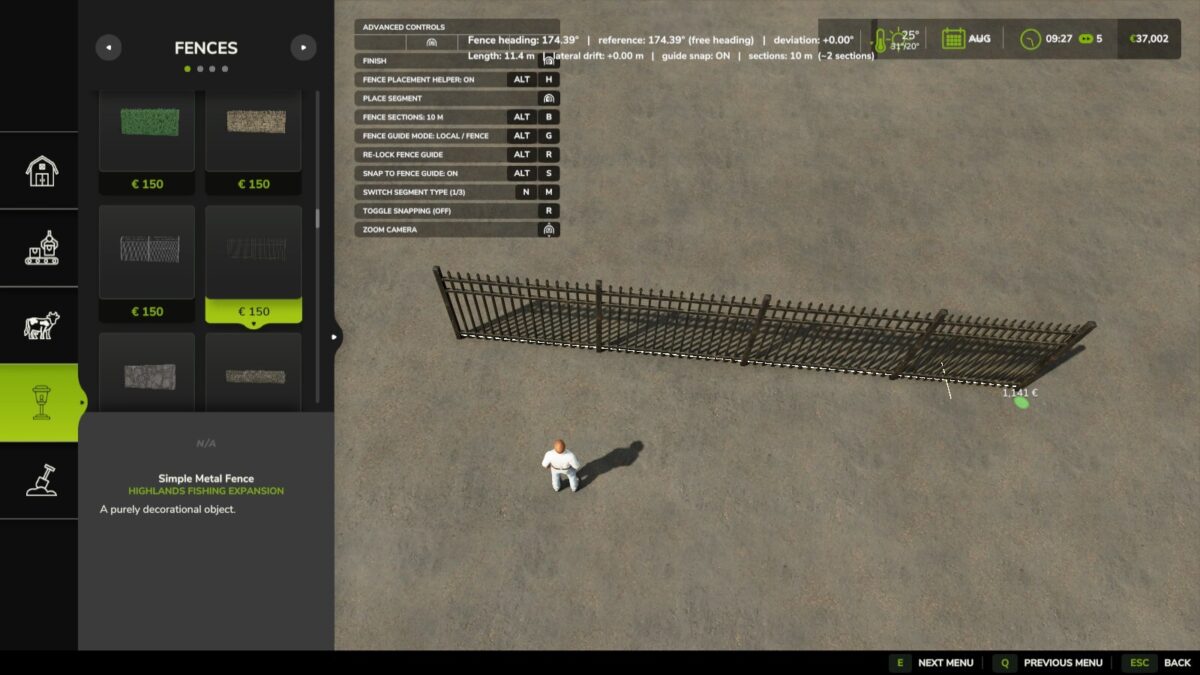
Fence Placement Helper improves long fence placement without replacing any vanilla construction controls.
Features:
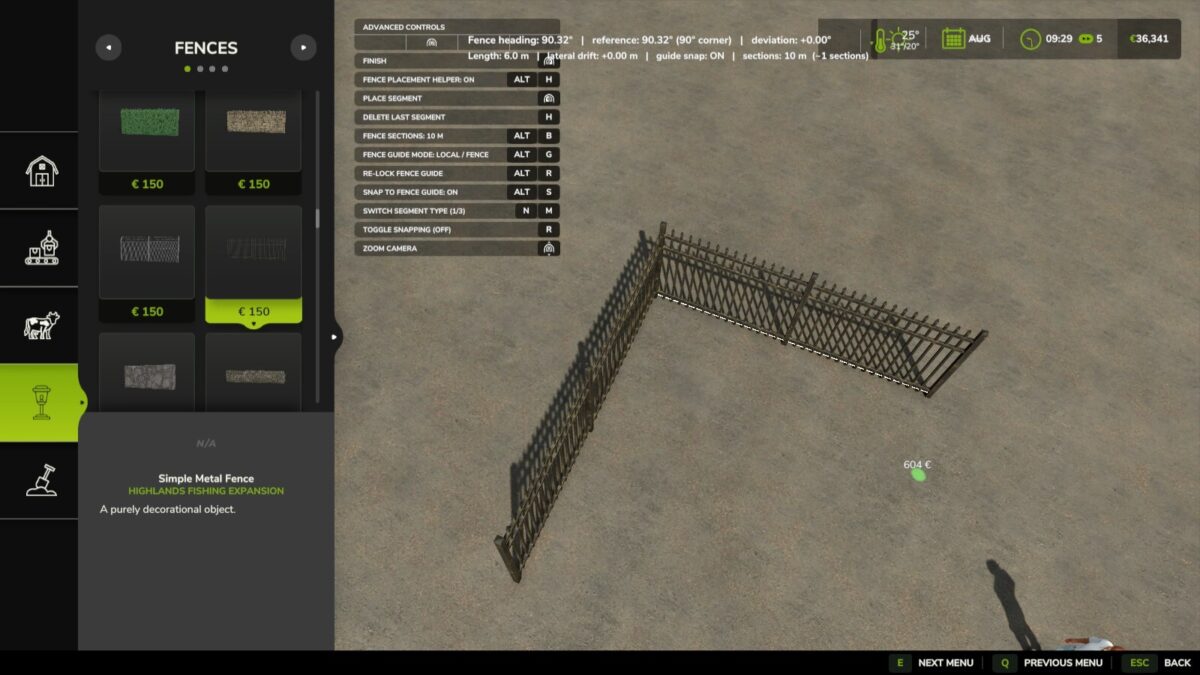
– Live fence heading in degrees.
– Straight-line reference follows an existing/parallel-snapped fence when available.
– World 0° / 90° mode is the default and aligns fences to the nearest world 0/90/180/270° heading.
– Local mode follows an existing fence when possible or locks to your own chosen heading.
– World 45° mode uses the nearest 0/45/90/135/…° world heading.
– Live deviation and lateral drift from that local reference.
– White straight reference guide and visible section markers while placing.
– Optional snapping directly onto the white straight-line guide.
– At a new connected corner, Local mode automatically lets you choose straight continuation or an exact 90° left/right turn.
– Optional automatic long-fence sections: OFF / 10 m / 25 m / 50 m / 100 m.
– Sections remain visually continuous; FS25 suppresses duplicate shared posts.
– Every section is a native FS25 fence segment, so the normal demolition tool can remove one section at a time.
– Uses the normal FS25 fence network events, savegame format and server authority.
– Multiplayer and dedicated-server compatible.
– Compatible with customizable husbandry meadow fences; required native start/end connection points and husbandry validation are preserved.
– Master ON/OFF switch instantly returns fence placement to vanilla behavior while preserving your helper settings.
Controls:
Left Alt + B = cycle fence section size.
Left Alt + R = re-lock the straight-line guide to the current fence angle.
Left Alt + S = toggle snapping to the white guide.
Left Alt + G = switch guide mode: World 0° / 90° ↔ Local / fence ↔ World 45°.
Left Alt + H = master Fence Placement Helper ON/OFF.
Default section size: 25 m.
Vanilla snapping and all existing construction buttons are unchanged.
Credits:
Verhoef