

Enhanced Vehicle v 1.1.5


Track assistant (“GPS light”). Parking brake. Differential locks and wheel drive modes for your vehicle. Shows more vehicle details on HUD.
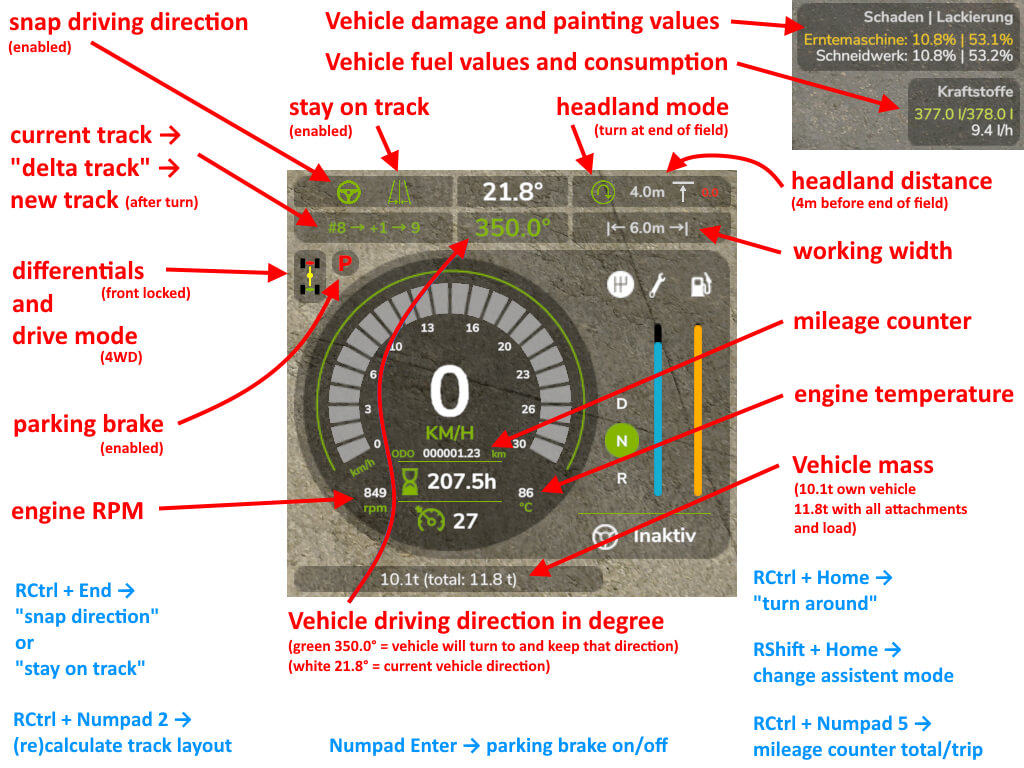
This is a modification for Farming Simulator 25. It adds a “track assistant” (“GPS”) and a “snap to driving direction” feature, a parking brake, differential locks, wheel drive modes, and improved hydraulics controls to your vehicle. The HUD also shows more vehicle details, including an odo/trip meter.
Default Keybindings:
– R Ctrl+Num / opens the config dialog to adjust various settings
– Num Enter apply/release parking brake
– R Ctrl+End snap to current driving direction or current track
– R Ctrl+Home reverse snap/track direction (180°) (= turn around)
– R Shift+Home change operational mode (snap to direction or snap to track)
– Press & hold for one second to disable snap assistant
– R Ctrl+Num 1 re-calculate working width (e.g. spraying width changed)
– R Ctrl+Num 2 re-calculate track layout (e.g. direction changed or working width changed)
– R Ctrl+Num 3 cycle through the different show lines modes
– R Ctrl+Num * cycle through the different headland modes
– R Shift+Num / / Num * cycle through headland distances
– R Ctrl+Num 4 / Num 6 decrease/increase the number of turnover tracks
– R Shift+Num 4 / Num 6 move track layout to the left/right
– R Ctrl+R Shift+Num – / Num + move track offset line to the left/right
– R Alt+Num – / Num + decrease/increase track width
– R Ctrl+Insert / Delete move vehicle one track to the right/left without turning around
– R Ctrl+PageUp / PageDown increase/decrease snap/track direction by 1°
– R Shift+PageUp / PageDown increase/decrease snap/track direction by 90°
– R Ctrl+R Shift+PageUp / PageDown increase/decrease snap/track direction by 45°
– R Ctrl+Num 5 Switch between overall kilometer counter or trip kilometer counter.
– Press and hold to reset trip kilometer counter to 0
– R Ctrl+Num 7 enable/disable front axle differential lock
– R Ctrl+Num 8 enable/disable back axle differential lock
– R Ctrl+Num 9 switch wheel drive mode between 4WD (four wheel drive) or 2WD (two wheel drive)
– L Alt+1 rear attached devices up/down
– L Alt+2 rear attached devices on/off
– L Alt+3 front attached devices up/down
– L Alt+4 front attached devices on/off
What this mod does
- When the game starts, it changes all “motorized” and “controllable” vehicles on the map to default settings: wheel drive mode to “all-wheel (4WD)” and deactivation of both differentials.
- Press Ctrl+Numpad / to open the config dialog.
- Press R Shift+Home to enable the snap to direction or snap to track assistant.
- Press & hold R Shift+Home one second or longer to disable the snap & track assistant completely.
- Press R Ctrl+End to keep your vehicle driving in the current direction or on the current track.
- Press R Ctrl+Home to reverse snap/track direction (e.g. to turn around at end of field).
- Press R Ctrl+Numpad 2 to calculate a track layout based on current vehicle direction and implement working width.
- If you now enable snap mode the vehicle will drive on the current marked track.
- Press R Ctrl+Numpad 4/6 to adjust the turnover track number (from -5 to 5).
- Configure headland behavior in configuration menu or via keys.
- Press R Ctrl+Numpad 1 to (re-)calculate the working width. This will not change the current track layout.
- Press Numpad Enter to put your vehicle in parking mode. It won’t move an inch in this mode.
- On HUD it displays:
- (When snap/track is enabled) The current snap to angle and current track and turnover number.
- Damage values in % for controlled vehicle and all its attachments.
- Fuel fill level for Diesel/AdBlue/Electric/Methane and the current fuel usage rate1.
- The overall kilometer counter of the vehicle or the current trip kilometer.
- The current status of the differential locks and wheel drive mode.
- The current engine RPM and temperature1.
- The current mass of the vehicle and the total mass of vehicle and all its attachments and loads.
- Keybindings can be changed in the game options menu.
In multiplayer games, all clients, except the host, won’t display the fuel usage rate and engine temperature correctly due to GIANTS Engine limitations
Version 1.1.5:
* Some code/performance optimizations here and there and fix for bug #59 (thanks to DeckerMMIV)
* Ability to rotate in 0.25 degrees, instead of 90 degrees (thanks to DeckerMMIV)
* Display value of compass direction aligned to be the same as the base-game’s mini-map (thanks to DeckerMMIV)
* Made rotation input-action repeatable similar to when setting width/offset of track (thanks to DeckerMMIV)
* Reordered the “showLines” sequence: hidden -> yellow -> yellow & red -> red -> hidden (thanks to DeckerMMIV)
Credits:
ZhooL


