

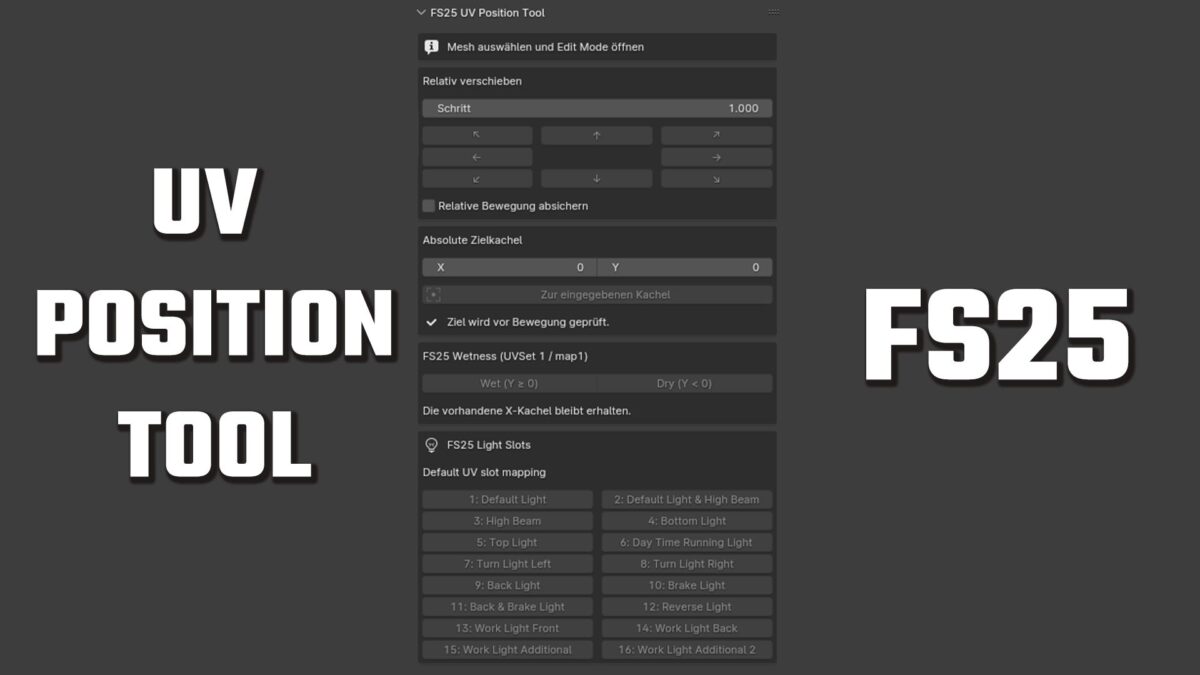
Blender Add-on UV Position Tool v 1.0.0.1


First public release of the FS25 UV Position Tool for Blender.
Features :
Relative UV movement in eight directions
Configurable movement step
Absolute UV tile positioning
Wet and dry row helpers
Direct access to all 16 Farming Simulator 25 light slots
Safety check for selections spanning multiple UV tiles
Multi-object Edit Mode support
Undo support
Compatibility :
Blender 4.0 and newer-Tested with Blender 4.0, 5.1.2 and 5.2.1 LTS
Installation :
Download fs25_uv_position_tool_v1.0.0.zip below.
In Blender, select Edit → Preferences → Add-ons → Install…, choose the ZIP file and enable the add-on.
1)Select one or more mesh objects in Blender.
2)Open FS25 XML Assistant and choose Use selected meshes.
3)Review or edit each proposed XML node name.
4)Set the intensity for every mesh manually.
5)Disable entries that should not be included.
6)Copy the generated staticLightCompounds block or save it as an XML file.
Version 1.0.0.1:
* The user interface has been made clearer
* A new XML wizard has been added, which staticLightCompoundssignificantly simplifies the creation of FS25 files
Credits:
Maddog Design


