
FS25 Misc

Economic History v 1.0

Economic History v 1.0

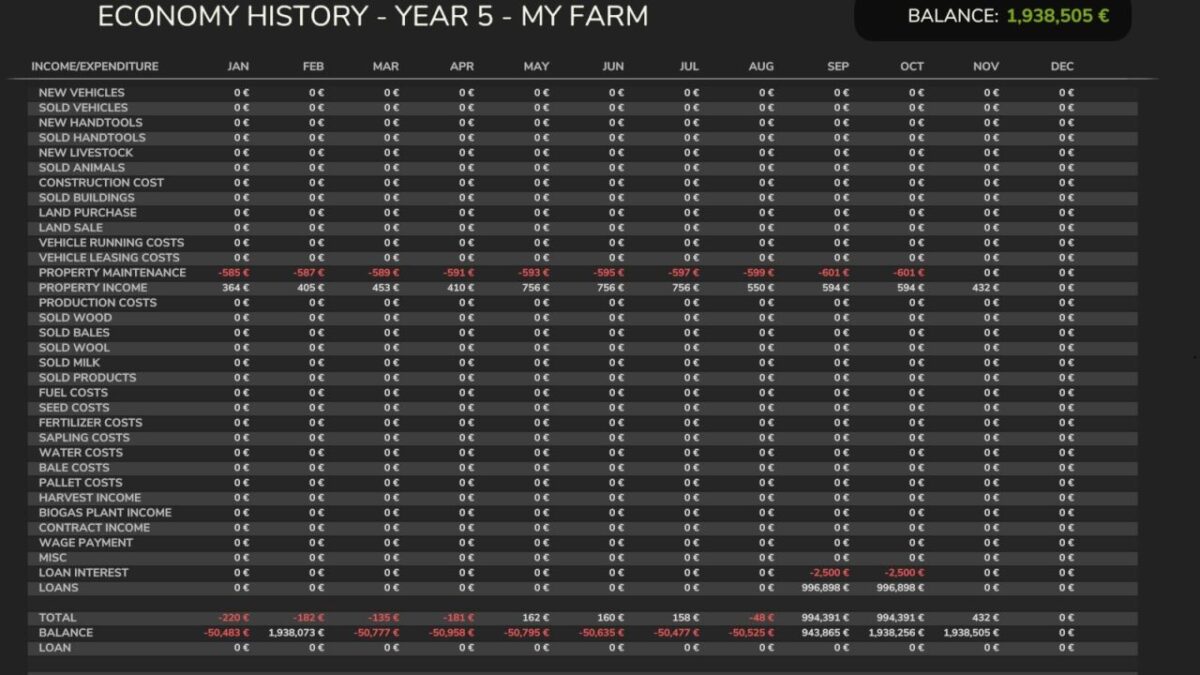
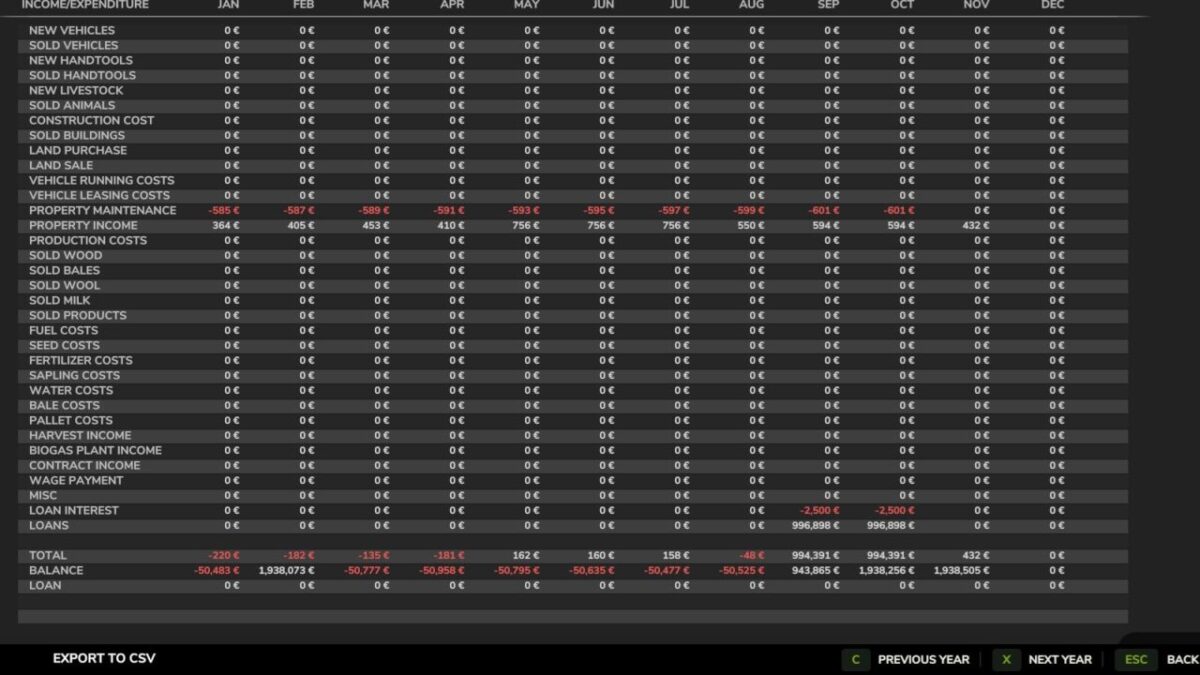
This mod allows you to get a complete financial history from the moment it is installed.
There is the option to export data to a CSV file, you can set where it is saved.
The CSV files will be stored locally.
In connection with a multi-farm farm, you will only be able to see data for your own farm.
If you log in as admin, you will be able to browse through all farms.
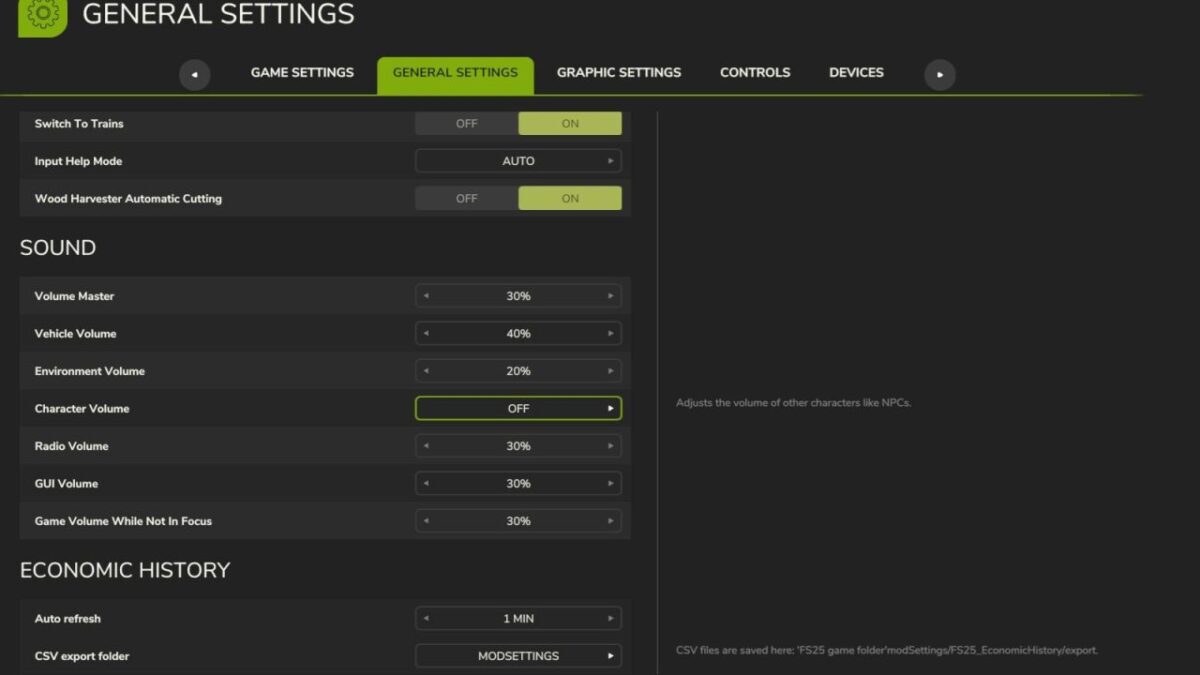
In the “GENERAL SETTINGS” section, you can set the auto refresh time when viewing this page, and where to store the CSV export file.
If “Custom Path” is selected, you need to manually modify the settings file to set the path where the CSV files will be saved.
The settings file is located in the modSettings folder, which is located in the FS25 game folder.

Credits:

Chris1969

How to install FS25 Misc?
Firstly find a mod which you like and want to download. Then download a mod to your PC. Mods are usually in .zip format file. But sometimes it can be in .rar. If a mod file is a .zip format no needed additional actions. If a file is in .rar, then you must unarchive mod with software like WinRar or Zip7. Windows 10 users no need to use software for archives, Win10 itself has a feature to unarchive files.
The next step is to find mods folder in your PC. Usually, it is in Documents/My Games/Farming Simulator 25/2025. Open the "mods" folder and put downloaded .zip archive or unarchived .rar file to this folder.
Last step. Enjoy of FS25 mods!

Leave a Reply

Your email address will not be published. Required fields are marked *