

Quick Selector v 1.0.1.0


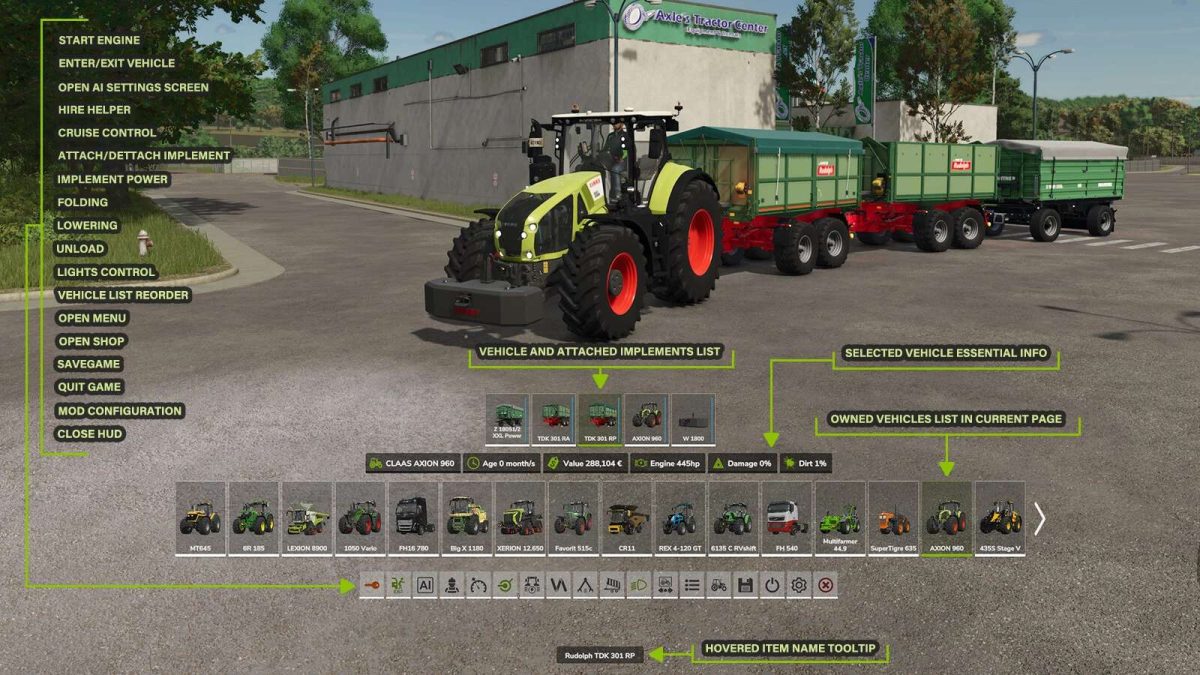
The Quick Selector enhances gameplay with an intuitive user interface, offering additional game functions and quick access to essential vehicle and game controls.
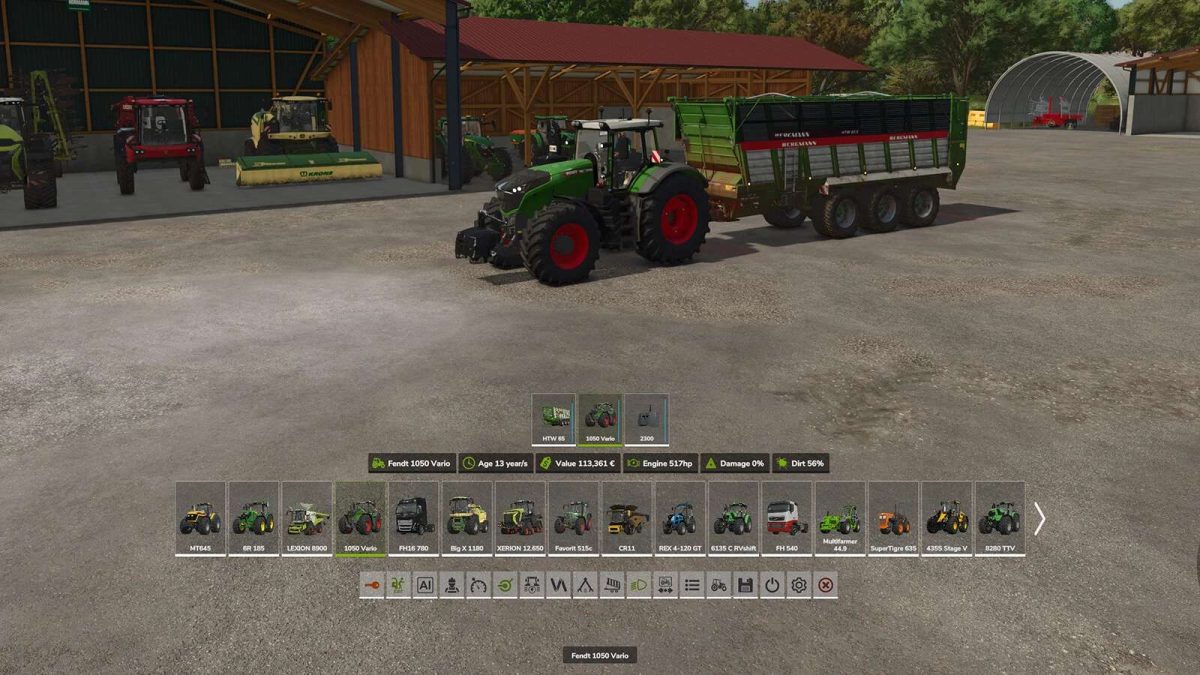
It features the list of personal vehicles and implements, additional vehicle information and the possibility to operate selected vehicle/implement functions with a click.
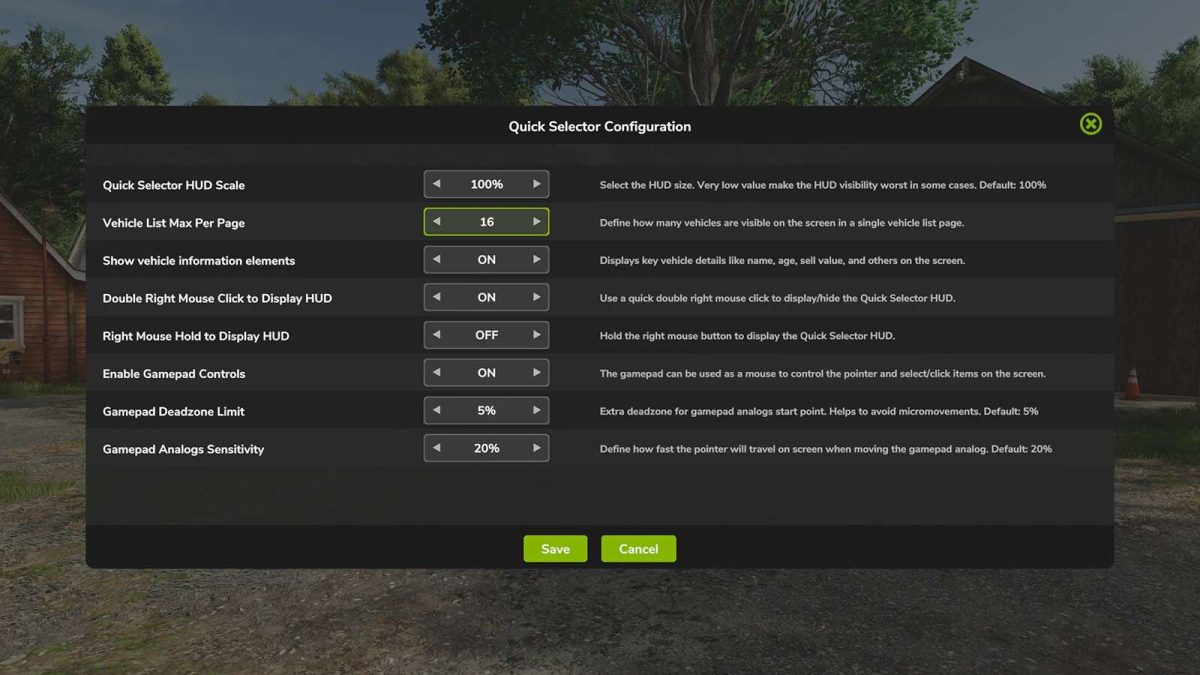
By default, the HUD can be opened with a (Double Right Mouse Click) or via configurable keys:
– Keyboard: Right CTRL key
– Gamepad Open HUD: button (Arrow Down + Square) on PS / (Arrow Down + X) on Xbox
– Gamepad Click Item: button (X) on PlayStation / (A) on Xbox
Key Features:
– Selectable Vehicles: Paginated list of owned vehicles and attached implements
– Vehicle Controls: Start the engine, enter or exit vehicles, toggle attachments, operate implements (power on, folding, lowering, unloading), and control cruise speed.
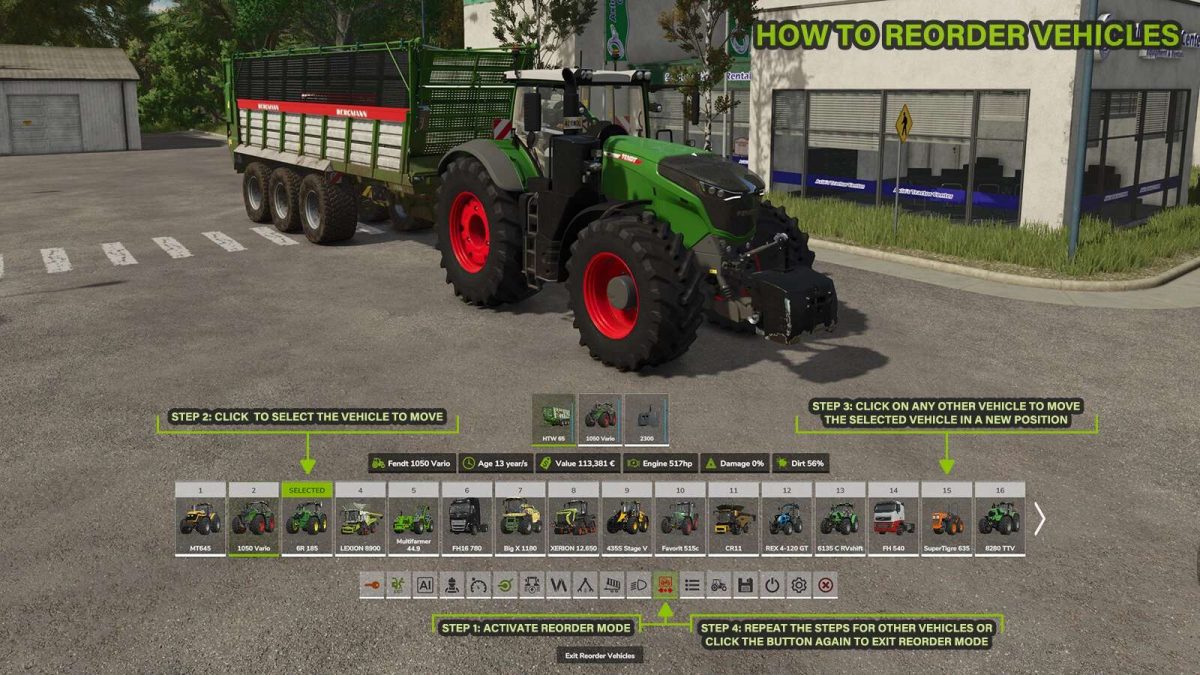
– Vehicle Reordering: Reorganize vehicles in the list, which also updates their tab order.
– Lights Control: Switch vehicle lights, all lights, front/backlights, beacon, and hazard lights.
– AI and Helpers: Open AI screens and hire helpers.
– Game Management: Open menus, access the shop, save the game, adjust settings, and exit.
Important Notes:
– Controls: When the HUD is open, all controls from (Keyboard, Mouse or Gamepad) are used to interact with Quick Selector elements (moving the cursor, select vehicle, click buttons).
Only the vehicle’s acceleration and brake inputs remain available.
– Gamepads: For quicker access, it’s recommended to change the HUD opening input from (Arrow Down + Square/X) to (Square/X) and remap the default vehicle enter/exit input from (Square/X) to (Arrow Down + Square/X) to prevent conflicts.
– No multiplayer support for now.
Version 1.0.1.0:
* Removed decoration (not owned) vehicles from vehicles list
* Fixed vehicle reorder not saving some vehicles in correct order
* Fixed hud not rendered on some widescreen resolution
* Various quality improvements
Credits:
Quity


