


Screenshot Mode v 1.0


Enhance your in-game screenshots with the Screenshot Mode!
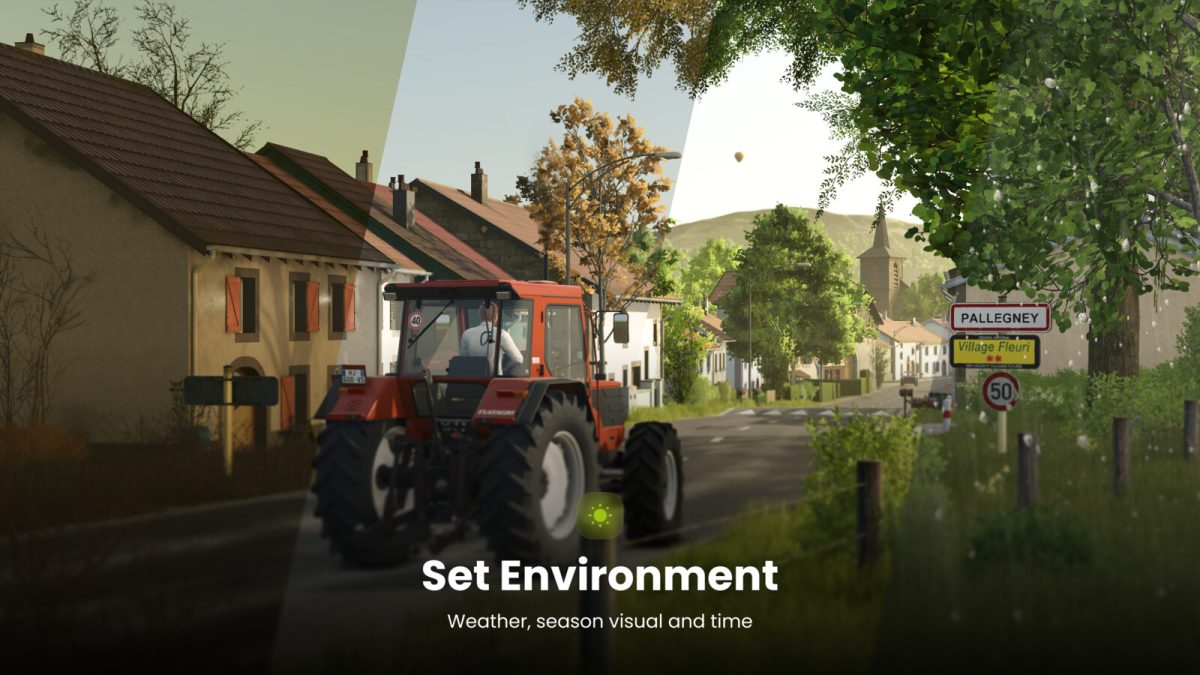
This mod gives you full control to create stunning screenshots by freely controlling the camera, modifying the environment (time, weather, season), configuring the controlled vehicle, and more.
Feature overview:
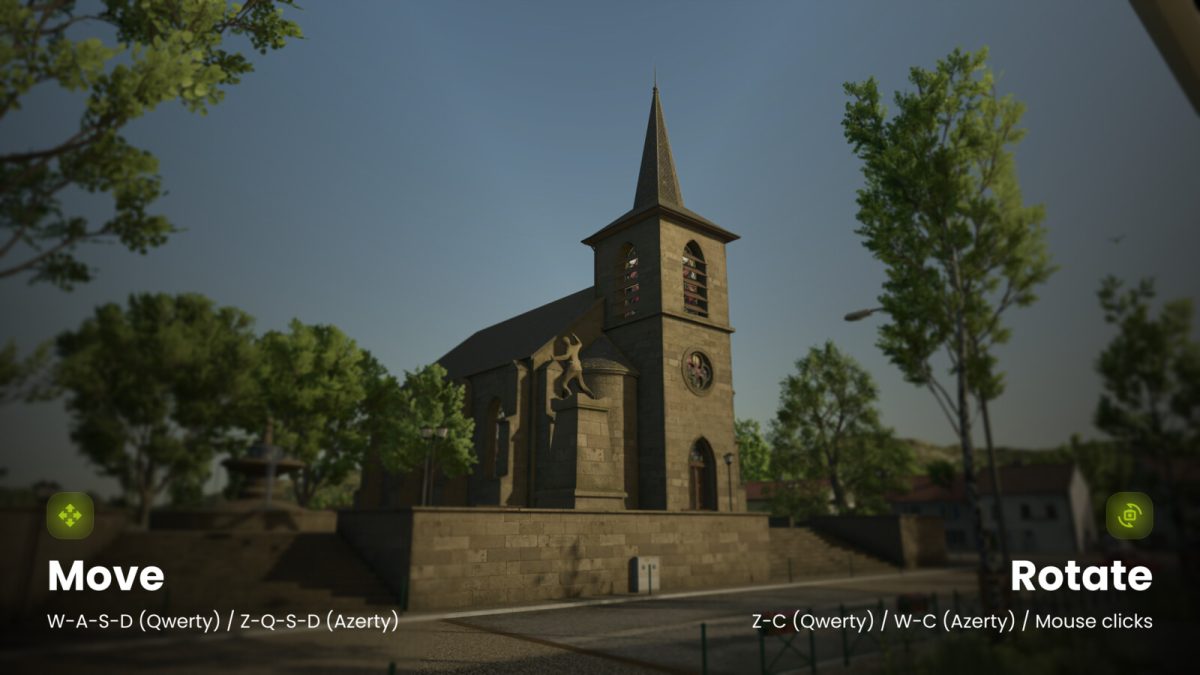
– Freely move and rotate the camera
– Adjust Field of View (FOV)
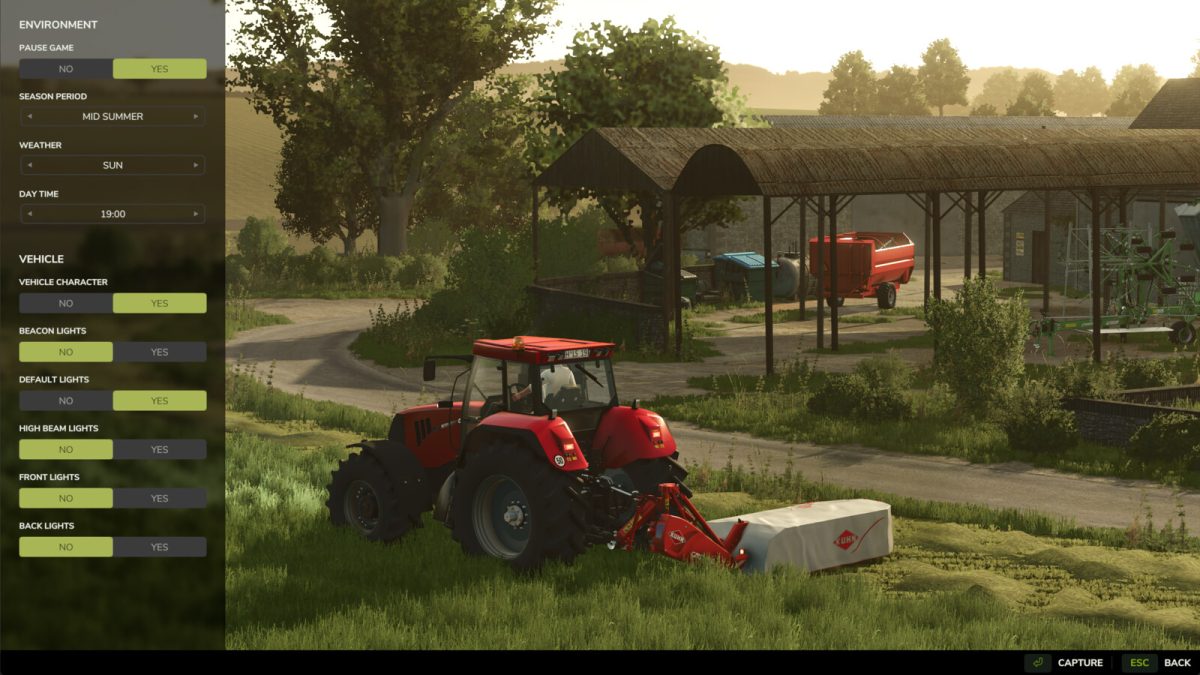
– Select season period
– Set weather (rain, hail, cloudy, sunny)
– Choose time of day
– Pause or unpause the game
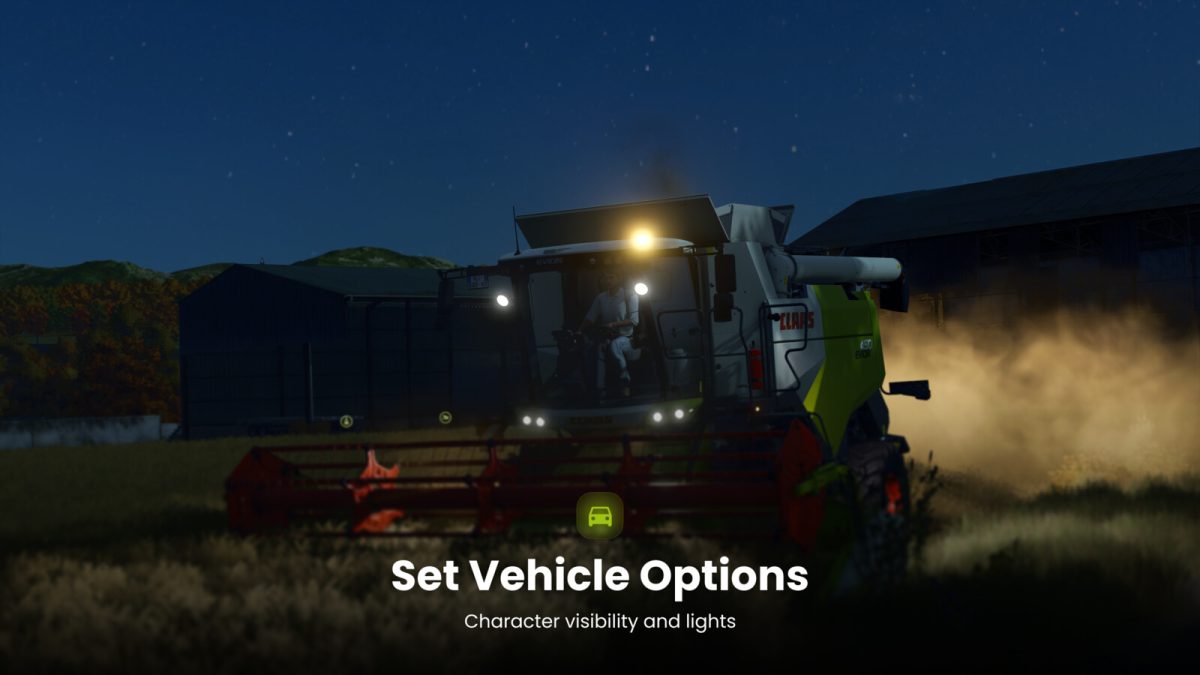
– Configure vehicle lights and character visibility
– Multiplayer compatible!
Inspired by Euro Truck Simulator 2 Photo Mode, the controls are intuitive and easy to use.
Controls:
– Open Screenshot Mode: Alt + j
– Move: W-A-S-D (Qwerty, Qwertz) / Z-Q-S-D (Azerty)
– Fly: Q-E (Qwerty, Qwertz) / A-E (Azerty)
– Rotate: Z-C (Qwerty) / W-C (Azerty) / Y-C (Qwertz) / Left mouse click
– Adjust FOV: Mouse Wheel
– Reset FOV: Mouse wheel click
– Change camera speed / FOV zoom speed: Left Ctrl / Shift
Credits:
Monsieur Bab


